[Oct ’26 note] Release planning is not an official Scrum event. I’d use the approach below mainly where work passes between specialists or teams and they need to coordinate dependencies and delivery dates. I wouldn’t make it the default for companies that need to learn quickly and change direction as they go. There, I’d put the effort into teams sharing responsibility for customer outcomes and being able to act on what they learn. Forecasting a shared date can still be useful. The question is whether this planning approach fits how the organisation needs to work.
Bridging the gap between roadmaps and sprint planning and resolving dependencies doesn’t have to be hard.
The secret is Release Planning.
This guide will briefly explain what Release Planning is, then walk you through how to conduct the event step-by-step. It’s suitable for both single teams, small groups of teams, and entire programs. You can extend and expand upon this guide as the complexity of your situation dictates.
What is Release Planning?
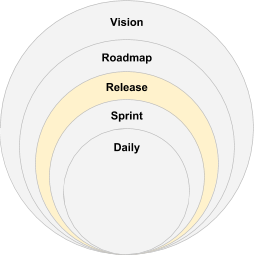
Release Planning is where the top-down Vision and Roadmap plans meet the bottoms-up Sprint and Daily plans in the middle.
Without Release Planning, we don’t have much information about whether or not we will be successful in completing our near-term roadmap items in the desired time frame.
A release plan is not a commitment. Instead, it is simply a good-faith forecast. It is generated with far more detailed inputs and analysis than a typical roadmap plan. It also involves the whole team’s insight. As a result, it’s typically off by a factor of only 1.5–2x instead of 2–4x as commonly seen with roadmap plans.
A release plan helps the team identify possible dependencies and risks in advance so that they can be mitigated earlier.
A release plan also helps the team have a greater sense of the bigger picture strategy. This can make the work feel less like an endless slog of sprint planning meetings with no greater purpose.
As a side note, veteran Agilist Mike Cohn thinks that “Medium Term Planning” is a better term than “Release Planning” because teams can release as frequently as several times a day or as infrequently as every several sprints. I agree.
A Useful Technique: “Fists-of-Five” voting
It’s often useful to get a “gut check” on the likelihood of a sprint or release plan being successful. If you’re a new team and don’t have an established velocity, this gut check might be all the data you have.
To perform a “Fists-of-Five” vote, every member of the team votes on the likelihood of a plan being successful on a 1–5 scale. Describe the scale below, then vote together on the count of three.

In general, it’s acceptable to proceed if everyone votes 4 or 5. If someone votes a 3 or less, ask them what it might take to vote a 4 or 5.
For instance, suppose all of the developers vote 4 or 5, but the user experience researcher votes 2. Ask why. They may tell you that there are too many items that require their skill set in the sprint. They may be willing to vote a 4 or 5 if some of those items are replaced with developer-oriented items. Then vote again.
Useful Supplies for Release Planning
It’s technically possible to complete Release Planning with the supplies found in most offices. As with any project, however, having the right supplies for the job will make it much, much easier.
For instance, most offices stock generic sticky notes. Those work fine around the office, but they lose tack quickly. After a few rounds of moving them around on a wall they’ll no longer stick reliably. You’ll inevitably find that your entire release plan is literally falling apart.
Should-have
| Item | How many | Why |
|---|---|---|
| Fine-point Sharpie® markers | 1 marker/participant plus spares | Markers are much easier than pens to read at a distance. Sharpie markers are reliable and last a long time. |
| Yellow 5” x 3” Super-Sticky Post-It® Notes | 1 pack/team | Chances are, you’ll be writing dozens of backlog items on sticky notes, so stock up on this size and color. This is a good size for this purpose. The super-sticky notes hold their tack much longer than generic sticky notes, so this is a worthwhile investment. |
| Multi-colored 5” x 3” Post-It® Notes | 1 pack/team | 3M only makes their 3”x5” Super-Sticky notes in canary yellow, but you’ll probably want different colors of stickies to reflect different types of backlog items. There are also other brands of super-sticky notes that may come in different colors, but I’ve not tried them. Choose the color family you like most. |
| Multi-colored 8” x 6” Super-Sticky Post-It® Notes | 1 pack/team | This size works well for indicating epics. If you’re using a foam-core board for your release plan, you can also use these for your sprint dates, velocity/throughput, and capacity indications. |
| Color-coding dots | 1 pack/team | You can get these in a variety of sizes and colors. I’ve not tried this particular set, but I like the size and wide variety of colors for tracking all sorts of dependencies. I normally see these in use but there are only 4 colors and the yellow is hard to spot on yellow sticky notes. |
Could-have
| Item | How many | Why |
|---|---|---|
| Multi-colored 2” x 2” Super-Sticky Post-It Notes | 1 pack/team | This size works well for calling out miscellaneous dependencies or other flags on user stories. |
| 4’ x 8’ Foam-core board | 1–2 boards/team | If you’d like to move your release plan from the conference room to your work area—either to simplify entering things in JIRA or keep it as an up-to-date information radiator—foam-core boards work best. They’re huge, so they’re expensive to ship. Look around locally for the best deal. If you’re careful with them, you can easily re-use these for a long time. |
| Super-Sticky Easel Pads | 1–2 pads per room | Provides additional writing space for schedules, risks, etc. They’re also an alternative to foam-core boards, but due to their thinness and small size, they can be a real hassle to work with. Be sure to get some drafting dots if you take this approach. |
| Drafting Dots | 1 pack/team | These are ~1” circles of masking tape that dispense quickly. They work great for holding runaway sticky-notes in place. They also work well if you’ve printed your backlog items on paper. Although nothing’s perfect, these are generally pretty gentle on painted surfaces and foam core boards, especially when they don’t stay up there for too long. |
| Blue painter’s tape | 1–2 rolls/team | Thin painter’s tape works well for drawing lines on foam-core boards. Probably fine for short-term use on walls, but probably not a great idea to use on whiteboards. |
| Technician’s Tool Pouch | 1 pouch/coach | It sounds silly, but some of the best coaches I know wear one of these when facilitating events. They can hold markers, sticky notes, and even rolls of tape. You’ll always have what you need immediately at hand when things are busy. |
| Digital Camera | 1 per room | Phones generally work fine, but a high-quality, high-megapixel digital camera can make photos of your release plan easier to read when you review them later. |
Step-by-Step Release Planning Instructions for Scrum Teams
Step 0: Prerequisites for Release Planning
Before you begin release planning, you’ll want to have these prerequisites in order for each team participating in planning:
Must-have
- Travel and accommodations
- Known release planning window (typically 2-4 months)
- Key milestones and dates
- Product vision and roadmap
- Alignment with stakeholders on what you hope to work on during this planning window
- Known, stable team roster
- Enough right-sized, well-formed backlog items to cover the entire planning window (Acceptance Criteria not required)
- Definition of Done
- Adequate architectural and design runway
- Calculate historical velocity
Should-have
- Discuss the Trade-off Matrix with your stakeholder and choose which of scope, schedule, and resources will be fixed, firm, and flexible
- Write backlog items on sticky notes in advance (see step 5)
- Prioritize backlog items (or at least know their MoSCoW)
- Call out dependencies if known
- Definition of Ready, Working Agreement
- Ask team members to plan PTO through the release planning window in advance to extent possible
Could-have
- Build a story map
- Estimate backlog items in advance
- Have refined backlog items that meet your team’s Definition of Ready (this will make your release plan more accurate, but the time it takes you to do this may be wasted if your plans change)
Step 1: Create the Board with Sprints and Dates
Make your white-board or foam-core board look like this:
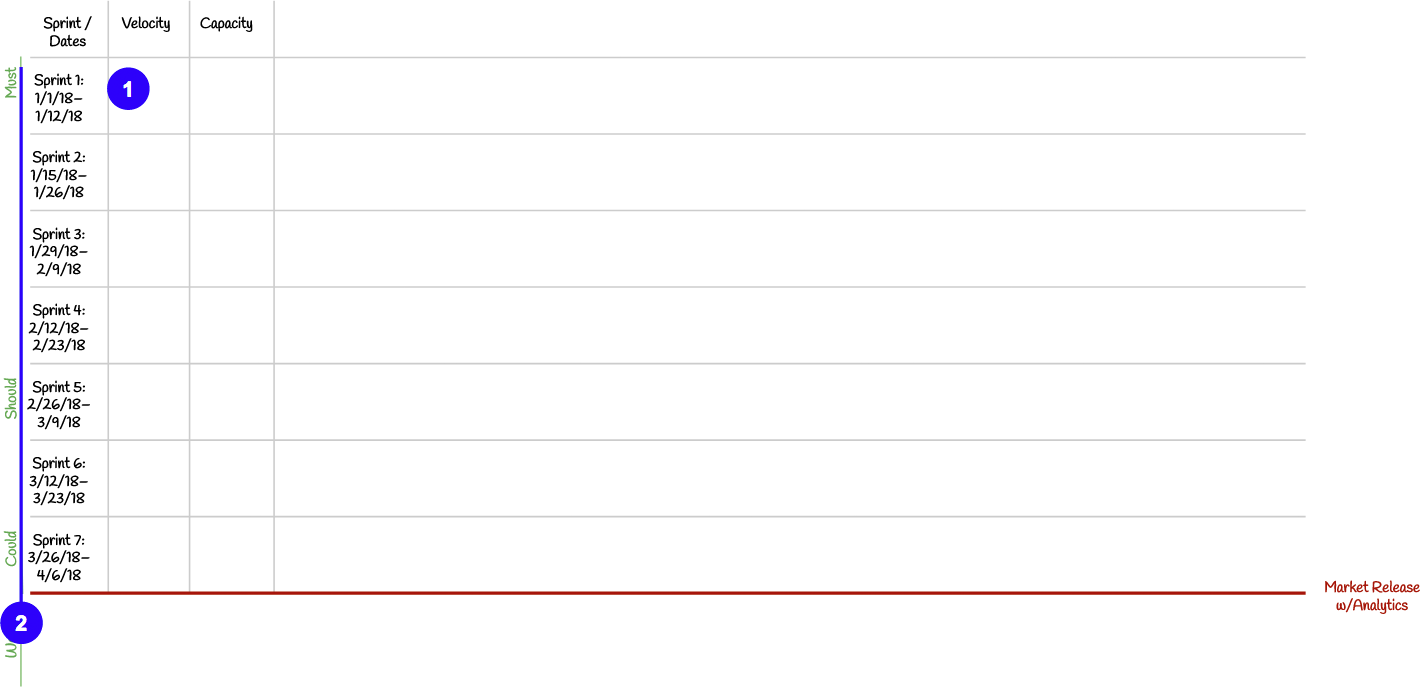
- For each sprint, indicate the sprint number, start date, and end date.
- Plan as many sprints as you like. Fewer than 4 sprints isn’t particularly useful, more than 8 takes too long for many teams. Many programs find it useful for every team to plan together once per quarter.
Tip: If you do this on one or more 4’ x 8’ foam-core boards, you’ll be able to move your release plan to your team area after release planning. This makes updating your backlog items and release plan in your Agile software easier. You can also keep this physical board up-to-date so that it acts as a physical information radiator for other teams and stakeholders.
Understanding MoSCoW: Must-, Should-, Could-, and Won’t-Have
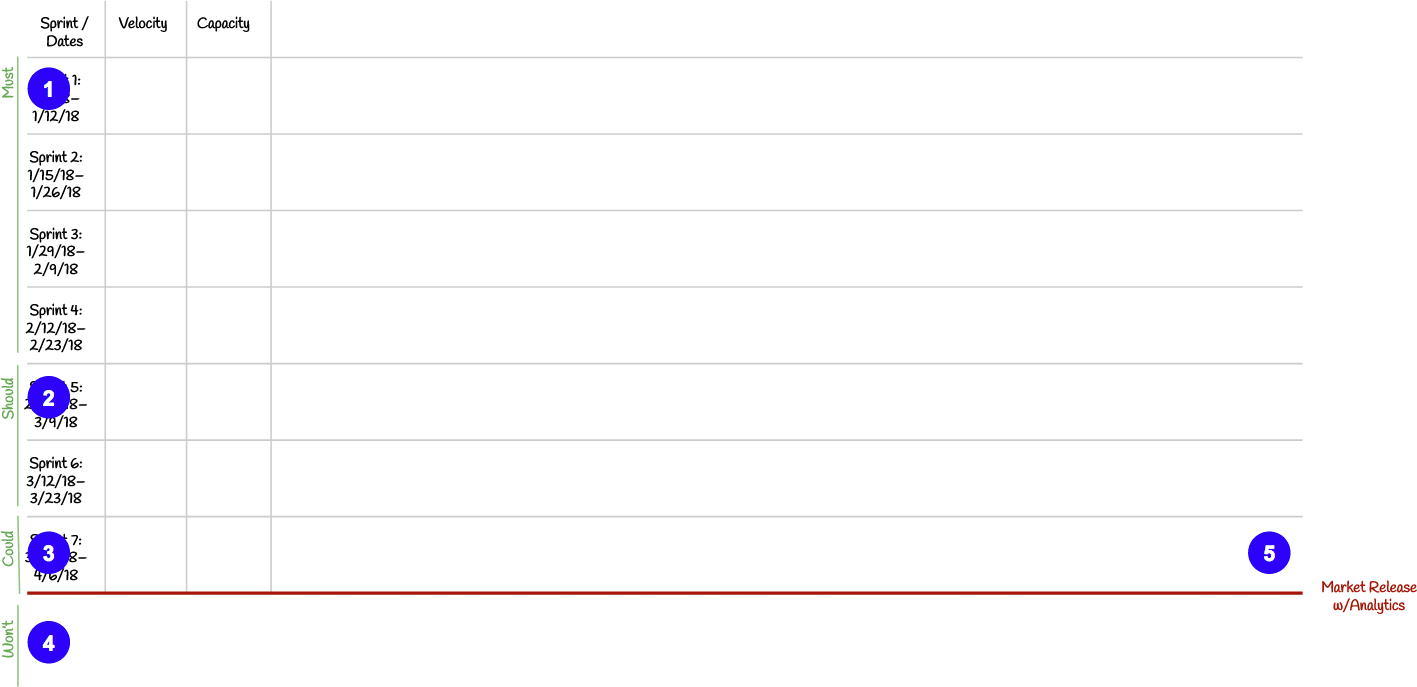
Note that we’ve indicated Must, Should, Could, and Won’t to the left of the board.
- Must-have means exactly that. If even one must-have condition isn’t present by the time we want to release, we won’t release. They are critical to the project’s success. These should be no more than 60% of your release scope. If your team is new and doesn’t have a known, stable velocity, consider limiting this to 40%.
- Should-haves are also important, but not absolutely necessary for the release. Limit these to about 20%.
- Could haves are desired but not necessary. If we’ve got the time and resources, we’ll include them in the release. These make up the balance.
- Having a “Won’t” section allows us to give early warning to stakeholders about the desired backlog items that are unlikely to be in the release.
- If you’re working towards a release or major milestone, indicate it in your plan. It can be located anywhere, it doesn’t have to be at the end. Adjust your MoSCoW indicators accordingly.
Step 2: Add In Your Features, Epics, and/or Activities
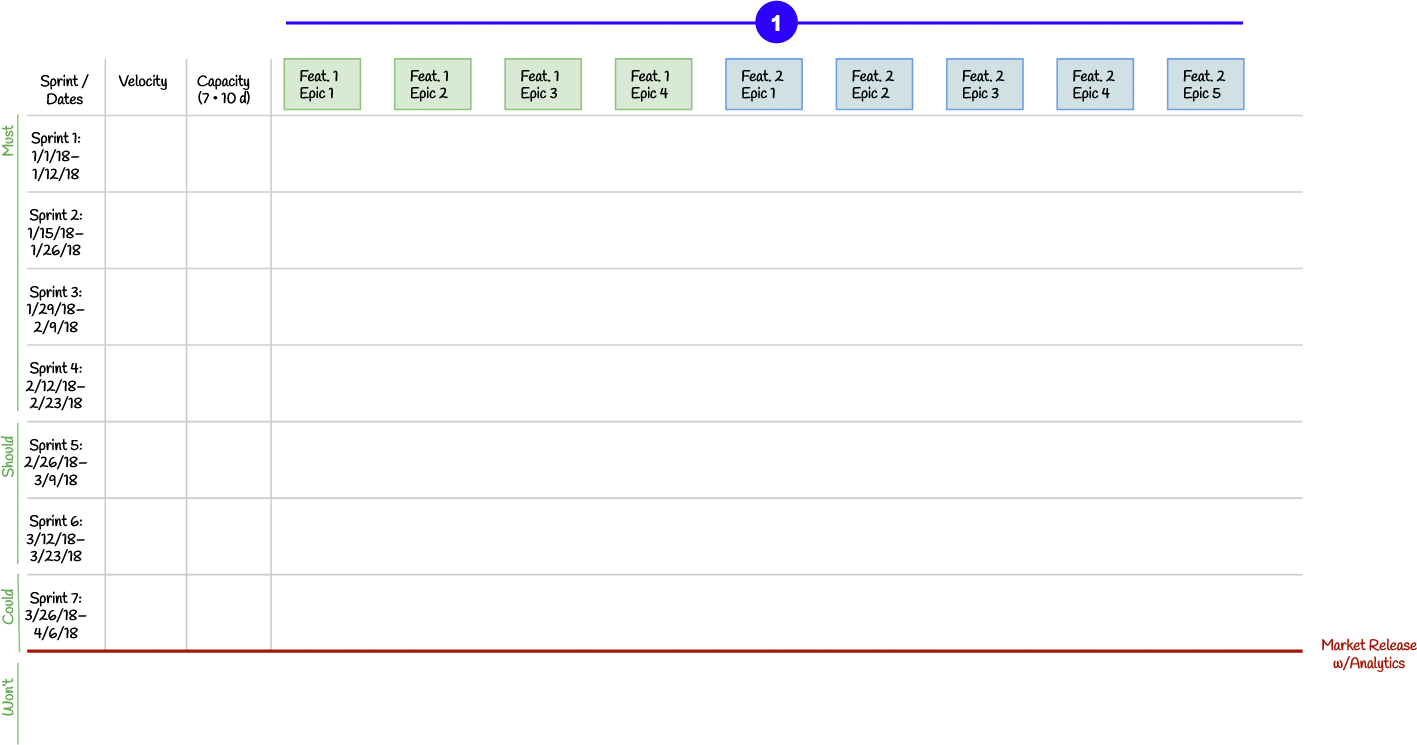
- Add sticky notes at the top of your release plan for each epic. It can be helpful to color-code these stickies based on the feature it relates to. Alternatively, you can use the sequence of activities from your story map.
Step 3: Determine Capacity
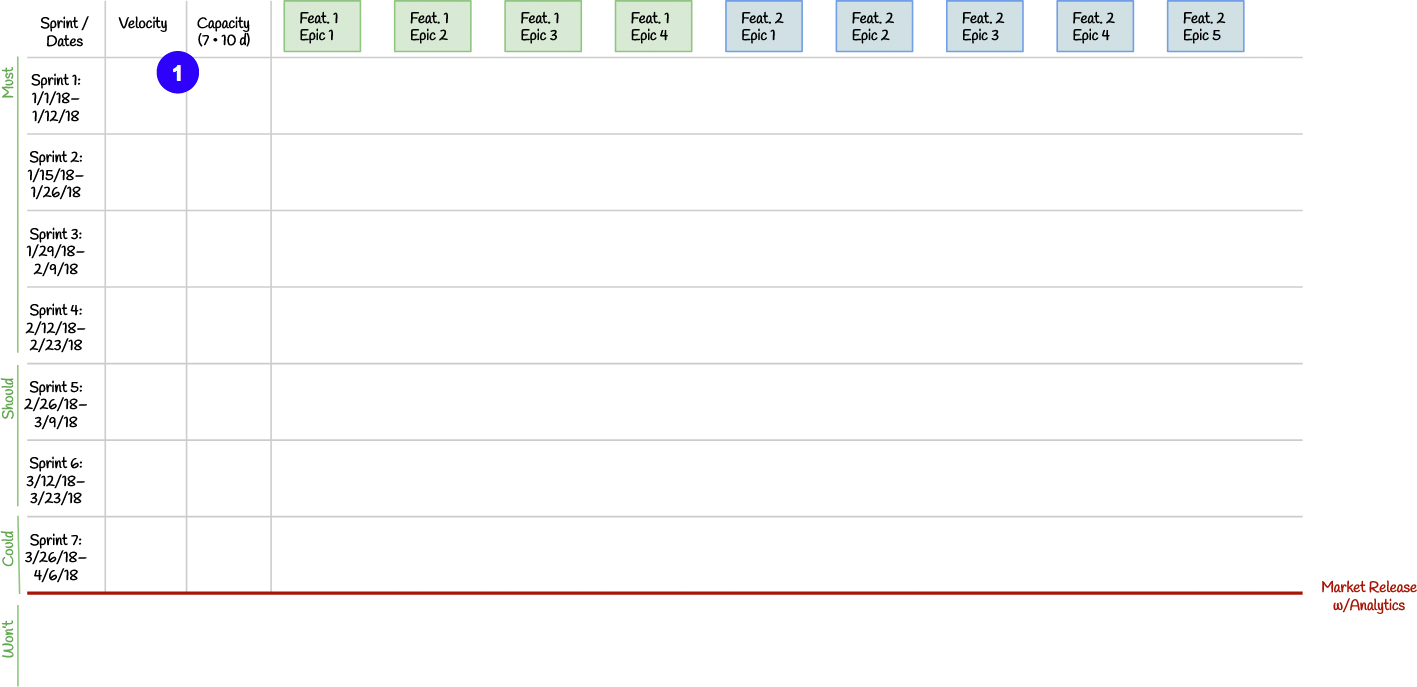
- Your default capacity is the number of full-time developers (including user experience researchers) on your team, times the number of days in your sprint. This team has seven developers and is planning two-week sprints, so their capacity is 70 days per sprint.
Tip 1: Yes, it’s true that your development team will spend about 10% of their time in Scrum events. It’s not usually worth calling this 4.5 or 9 days as this statistic is used in a scaling function for velocity and the additional 10% of precision is well within your estimate margin of error.
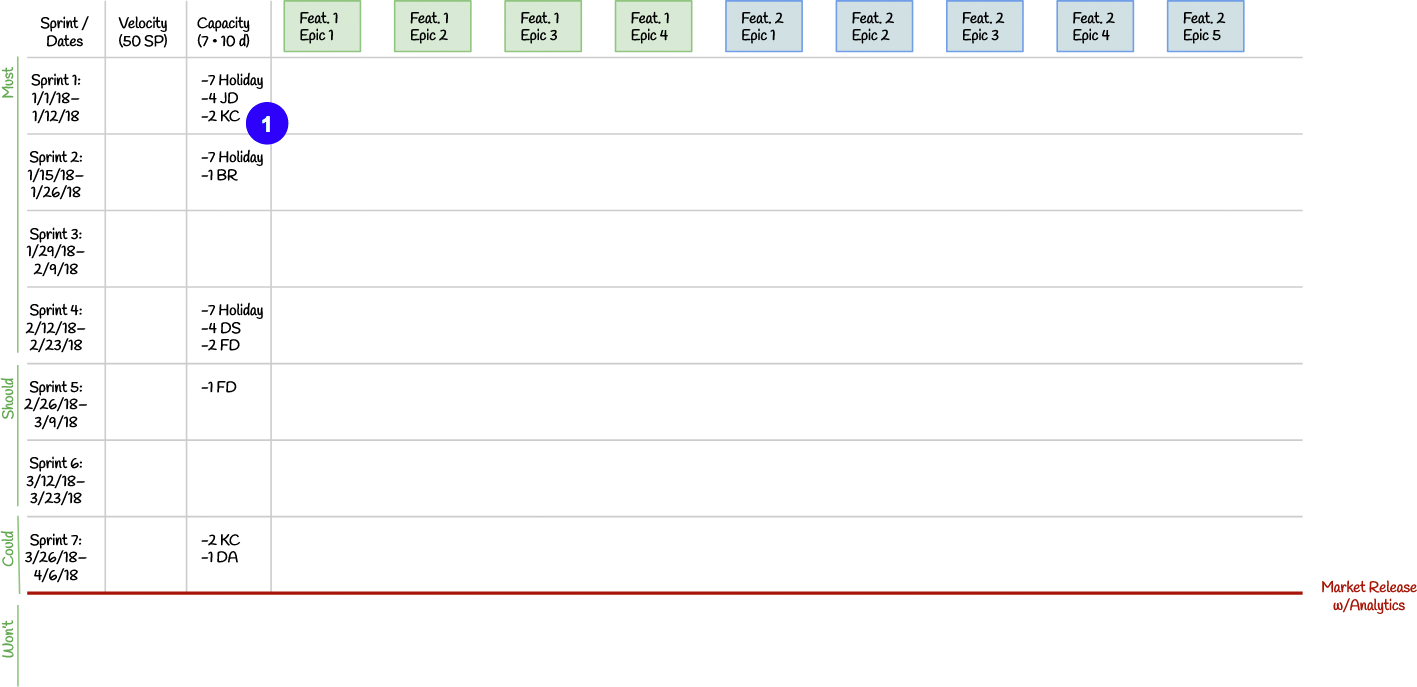
- Now, subtract capacity for each holiday, off-site (or similar), and expected PTO day. In Sprint 1, we have the New Year’s Day holiday, which means we are deducting 7 days as all 7 developers will take this day off. JD is taking the rest of the first week of January off, so we’ve deducted another 4 days. KC expects to take a couple of days off in the second week.
We don’t have currently any offsites planned in this Release Planning window, so they won’t appear on the release plan.
It’s perfectly OK if not everyone knows the exact PTO days they’ll be taking off in the Release Planning window. This plan is a forecast—not a commitment—and will inevitably change as time goes on. Do the best you can with the data you have today.
Step 4: Determine Velocity for Each Sprint if Historical Velocity is Known
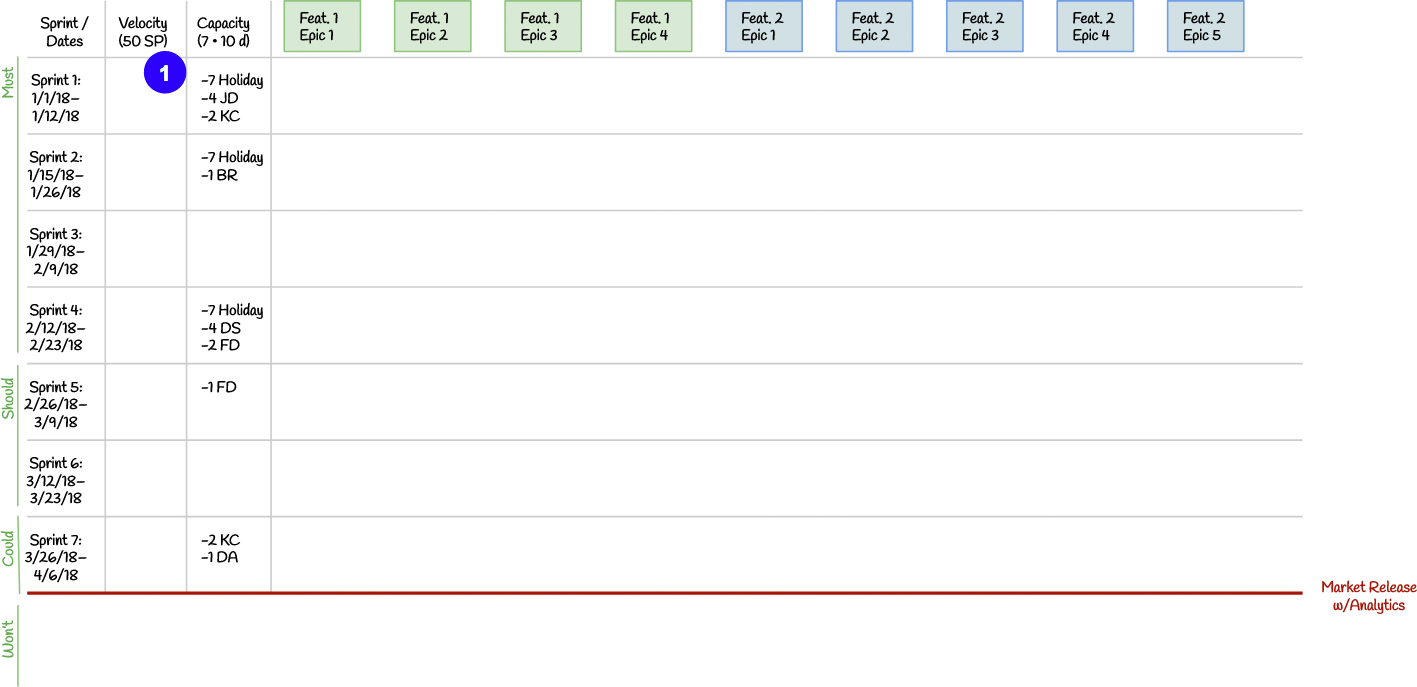
- Calculate your historical velocity at full capacity based on the last 3–4 sprints. Even if you have only 1–2 sprints, this will be better than nothing.
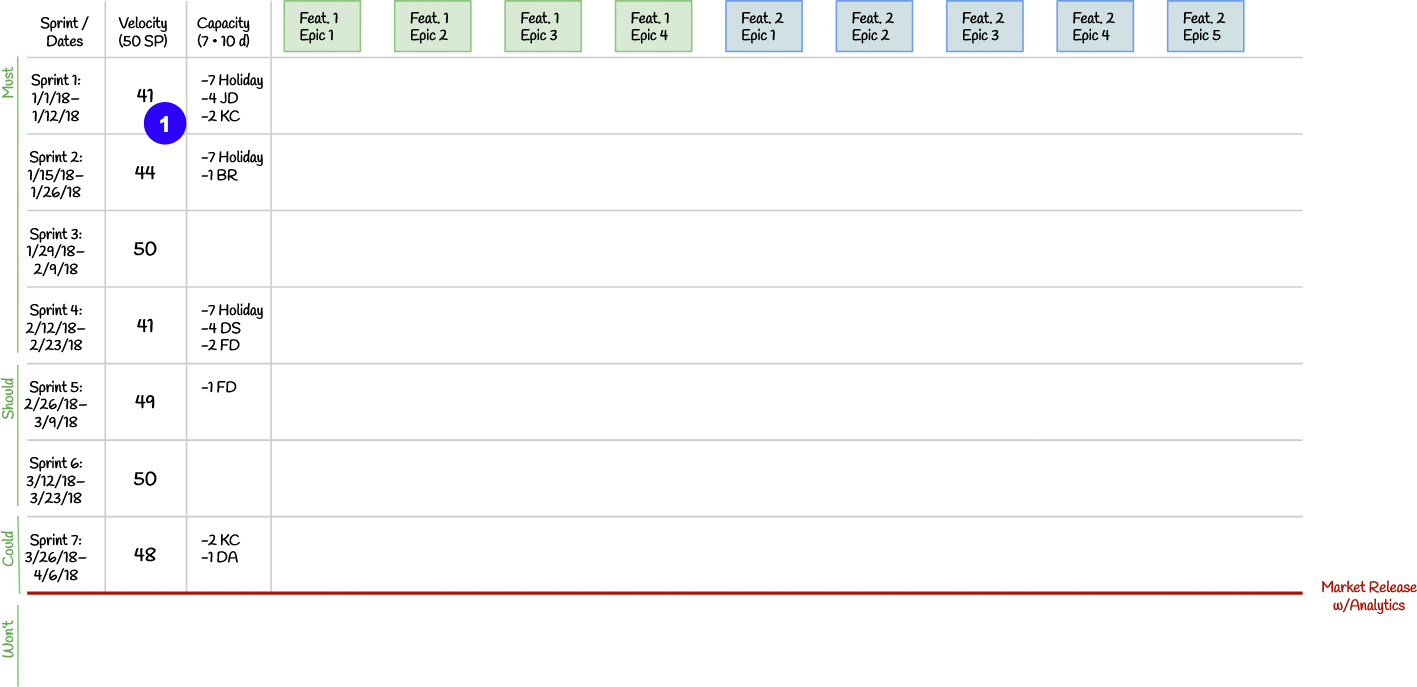
- For each sprint, calculate the expected velocity, adjusted for capacity. In this sprint, our effective capacity is: (70-7-4-2)/70 = 57/70 = 81%.
We then multiply the full-capacity velocity by the effective capacity, then round up or down. Thus our velocity is: 50 * 81% = 40.5 ≅ 41 story points.
Step 5: Write Backlog Items on StickiesThe product owner should do this earlier, but now’s the last possible moment.
1 The product owner should do this earlier, but now’s the last possible moment.
Using fine point Sharpie® markers—(not pens, they’re much harder to read at a distance—write backlog items on individual 3” x 5” sticky notes:
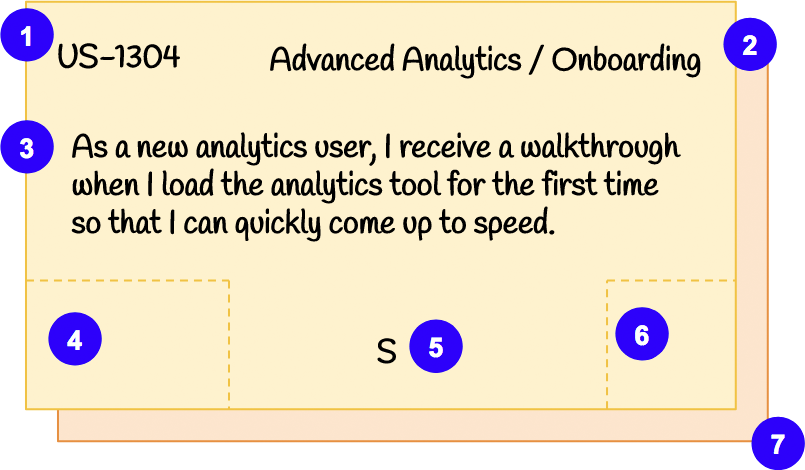
- Write the backlog item number from JIRA if you’ve got it. Don’t waste your time writing the prefix if it’s consistent across all items.
- Write the Feature and Epic in the corner if the backlog item is associated with one. Acronyms and shorthand are fine.
- Write backlog item’s title. In this case, this is a well-formed user story. Note that it doesn’t have to meet the Definition of Ready or have fully-defined acceptance criteria yet.
- Leave about a square inch or two in a bottom corner to write the story point estimate later. You don’t need to draw a box, just reserve some space.
- If your product owner knows in advance, it can be useful to note a backlog item as a Must-, Should-, or Could-have. This is a Should-have. This makes loading items into sprints later easier.
- Leave about a square inch or two in the other bottom corner to indicate dependencies with a label or acronym.
- You can use different-colored stickies to indicate different types of items if it’s helpful. In particular, I like to use a different color for functional spikes (design, UX, etc) because they generally rely most on a single user experience researcher. This can help prevent someone from getting swamped if the items are otherwise within the sprint’s point budget.
Tip: 3M® Post-It® Super-Sticky notes work so much better than the generic ones typically in an office that the price difference and effort to obtain them is well worth it. Otherwise, your sticky notes are almost guaranteed to start falling off the wall during release planning unless you tape them up. This lesson is hard-learned.
Step 6: Estimate Backlog Items Using Affinity Estimation
(The whole team could do this earlier, but now’s the last possible moment.)
First, arrange all of your backlog items horizontally from least to most complexity, uncertainty, and effort. It can be helpful to work in previously estimated and completed backlog item to act as a reference point.

Now, working together as a team, assign story point estimates to each new backlog item. Write the estimate on the sticky in the space you reserved for this purpose. Use those previously estimated and completed backlog item to help keep your story points consistent over time. Otherwise, your historical velocity may not translate well to the new story point estimates.

Step 7: Break Down Large Backlog Items
Given that you’re estimating backlog items that don’t meet the Definition of Ready, it’s common to have backlog items that are too large to finish in a sprint.
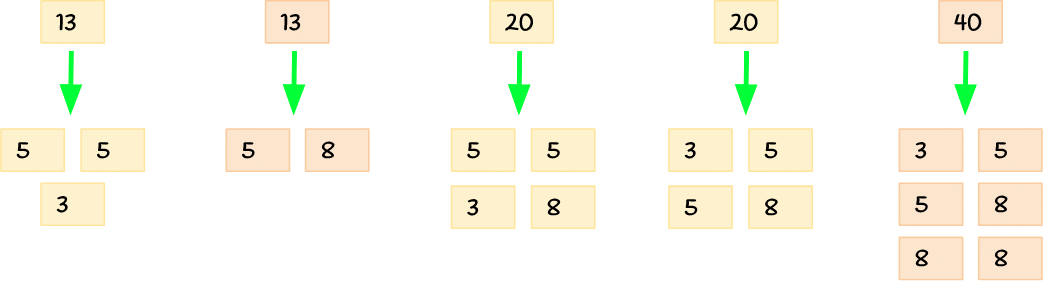
Here are two reasonable rules of thumb to determine what’s too large:
- The estimate is greater than ⅙ of your historical velocity.
- The team thinks the backlog item would take longer than half a sprint to complete. Things usually take twice as long as expected.
Use your best judgement on what items to break down. Do your absolute best to keep all of your backlog items, even these new smaller ones, vertically-sliced.
Step 8: Load Items Into Sprints
When Velocity is Known: Respect the Velocity
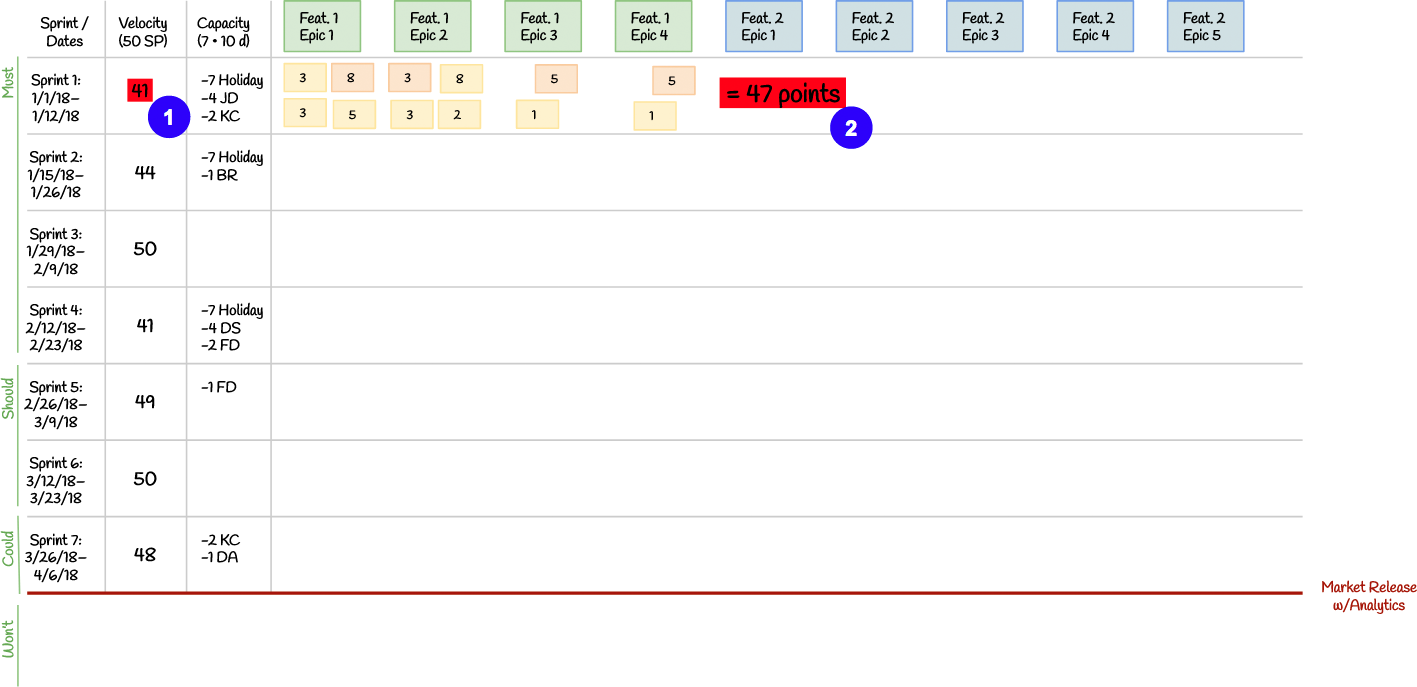
- We’ve selected 47 points worth of items for this sprint…
- …but our expected velocity this sprint is only 41 points due to the holiday and two people taking PTO.
Keep it empirical. If you think you can go faster than the data tells you, start with what you can afford based on the evidence and add more items mid-sprint when all other work has been completed.
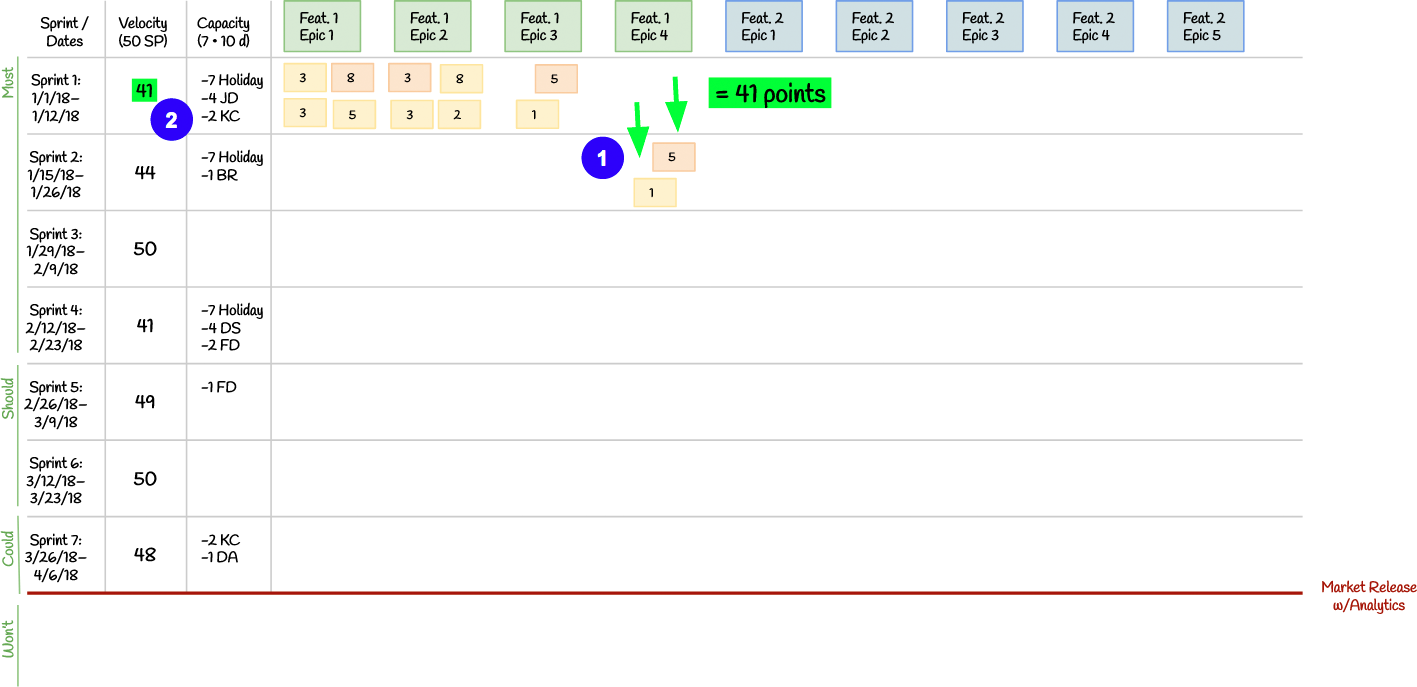
- We’ve moved 6 points worth of backlog items into the next sprint…
- …so that we respect our sprint budget of 41 points.
This isn’t such a bad thing. Working on three epics—rather than four—means we’ll be a bit more focused during the sprint. This will make our sprint review a bit more focused, too.
Tip: This example shows that we are loading up the sprint to 100% of the predicted velocity. This only works when we have a very good sense of the backlog items we’ll be working on over the next several sprints. If your backlog items aren’t particularly firm yet, you may wish to only load up to 60-80% of your capacity for each sprint. If you don’t add wind up adding new backlog items, simply pull work forward at sprint planning. You’ll make faster progress on your release plan than expected.
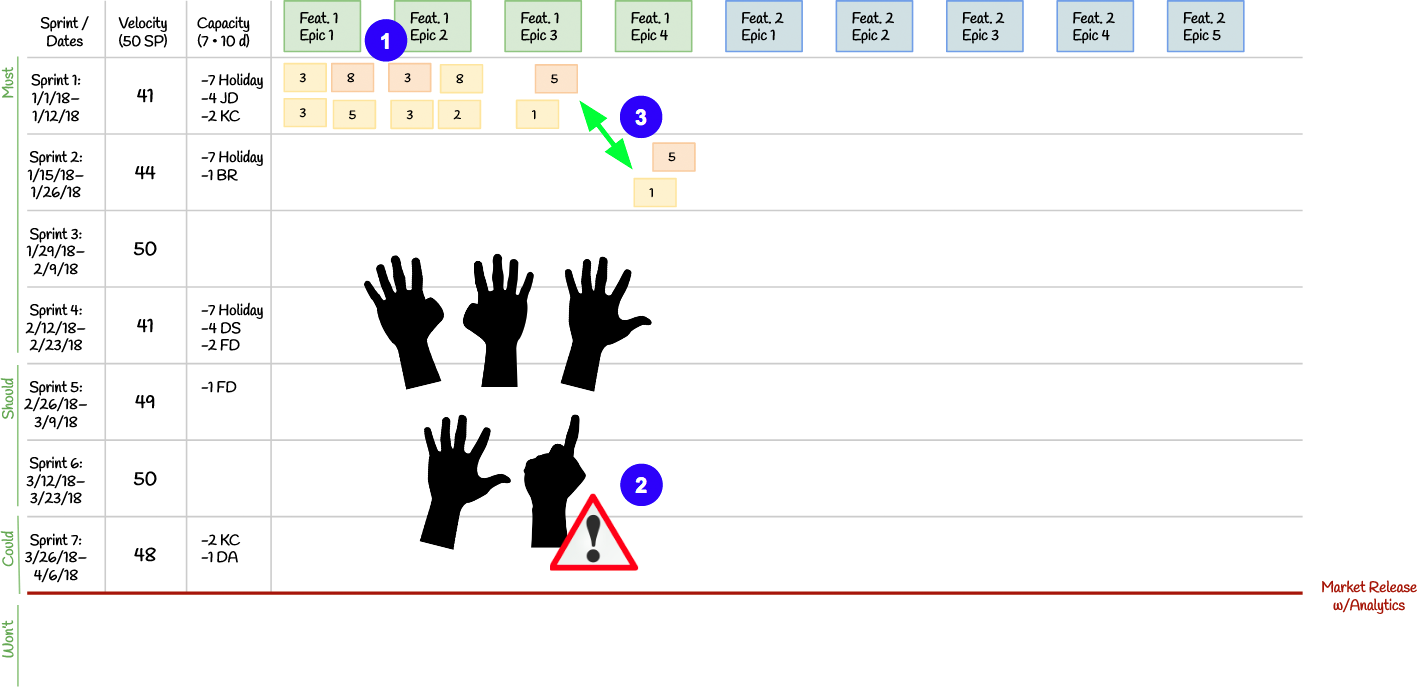
Now that you’ve loaded up a sprint, take a moment to do a “Fists-of-Five” vote with your team to do a “gut check” of your plan.
- Sprint 1 still has a lot of functional spikes.
- Your software developers might be happy, but your user experience researcher might object….
- …and ask you to swap in a different backlog item.
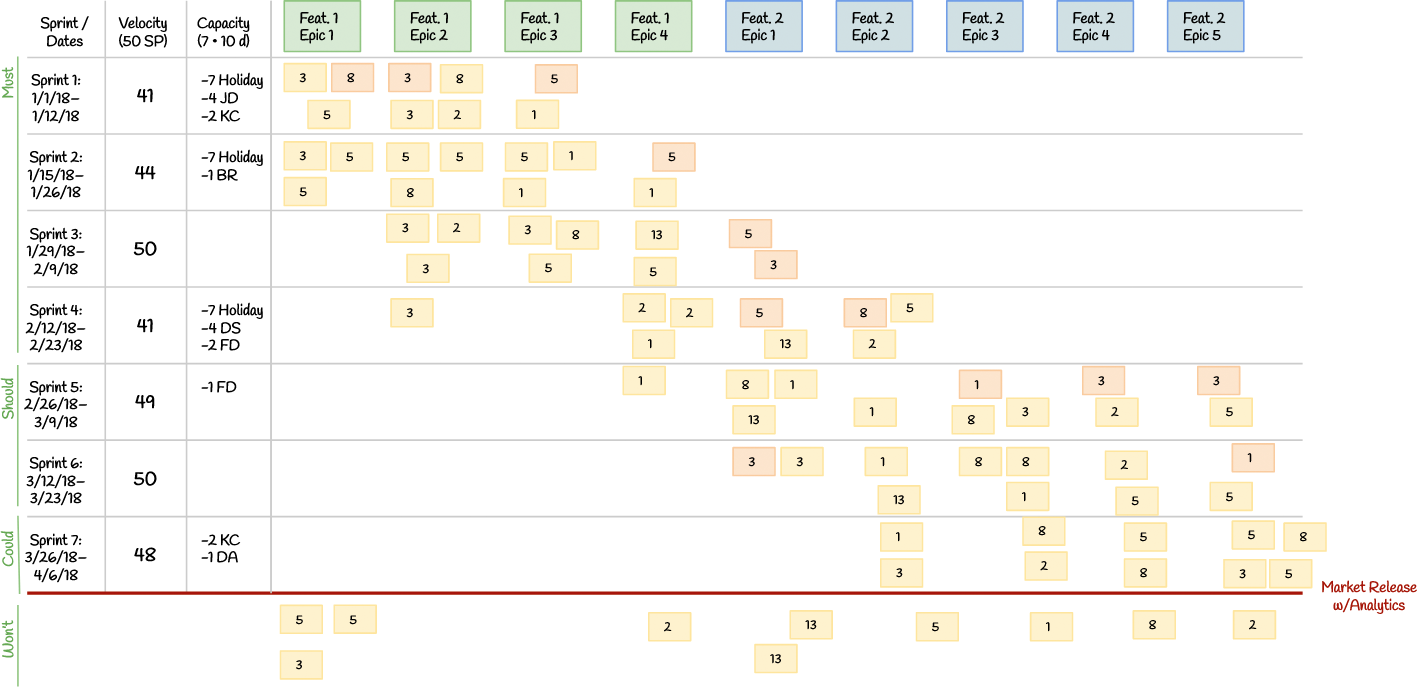
Finished! We’ve loaded up as many items we could into our release plan, respecting the velocity limits for each and every sprint.
Remember: In this example, we didn’t allow for a buffer for new backlog items. (Unexpected requests and impediments aren’t counted towards our velocity, so we still have room for them.) If your backlog items aren’t very firm, you may wish to only load up to 60-80% of your capacity for each sprint. If you don’t add wind up adding new backlog items, you can simply pull work forward at each sprint planning event. You’ll make faster progress on your release plan than expected.
Tip: If your stickies are falling off the board or wall, you can use “drafting dots” to adhere them. They’re less adhesive than tape, so they’re less likely to damage paint or your foam-core board.
When Velocity is Unknown: Use the Fists-of-Five Approach
There are two ways of loading items into sprints when your historical velocity is unknown.
One approach is to create a 1-point anchor backlog item that the team expects would take 1 day to finish end-to-end. This is the only backlog item that should ever gets an absolute estimate. Every backlog item is then estimated relative to this one. Your estimated velocity would then be 6-8 points per developer—allowing time for meetings and unexpected requests and impediments—adjusted for capacity. This sounds precise, but it isn’t always much more accurate than the simpler, Fists-of-Five approach. If you take this approach, use the instructions from Step 8a.
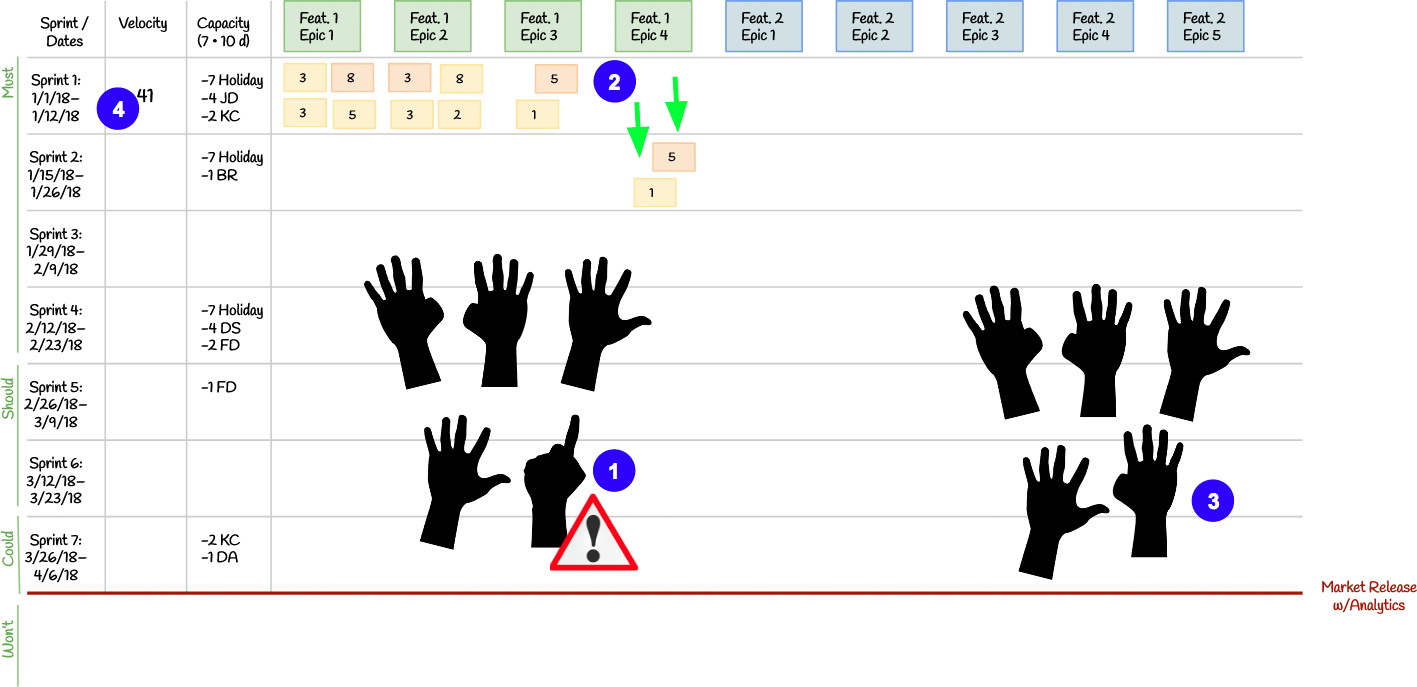
The other, simpler approach is to just take a “Fists-of-Five” vote for each sprint’s collection of items accounting for capacity, then simply write down the resulting velocity.
In this example:
- The team started off with 47 points of items but the user experience researcher was concerned about the two items related to Feature 1, Epic 4 due to their workload for the other three epics
- The team decided to move these two items to the next sprint.
- The team voted again and everyone voted a 4 or 5…
- …resulting in a 41-point sprint.
Tip: This team might have loaded up their sprint to 100% of their predicted velocity. This only works when we have a very good sense of the backlog items we’ll be working on over the next several sprints. If your backlog items aren’t particularly firm yet, you may wish to only load up to 60-80% of your capacity for each sprint. If you don’t add wind up adding new backlog items, simply pull work forward at sprint planning. You’ll make faster progress on your release plan than expected.
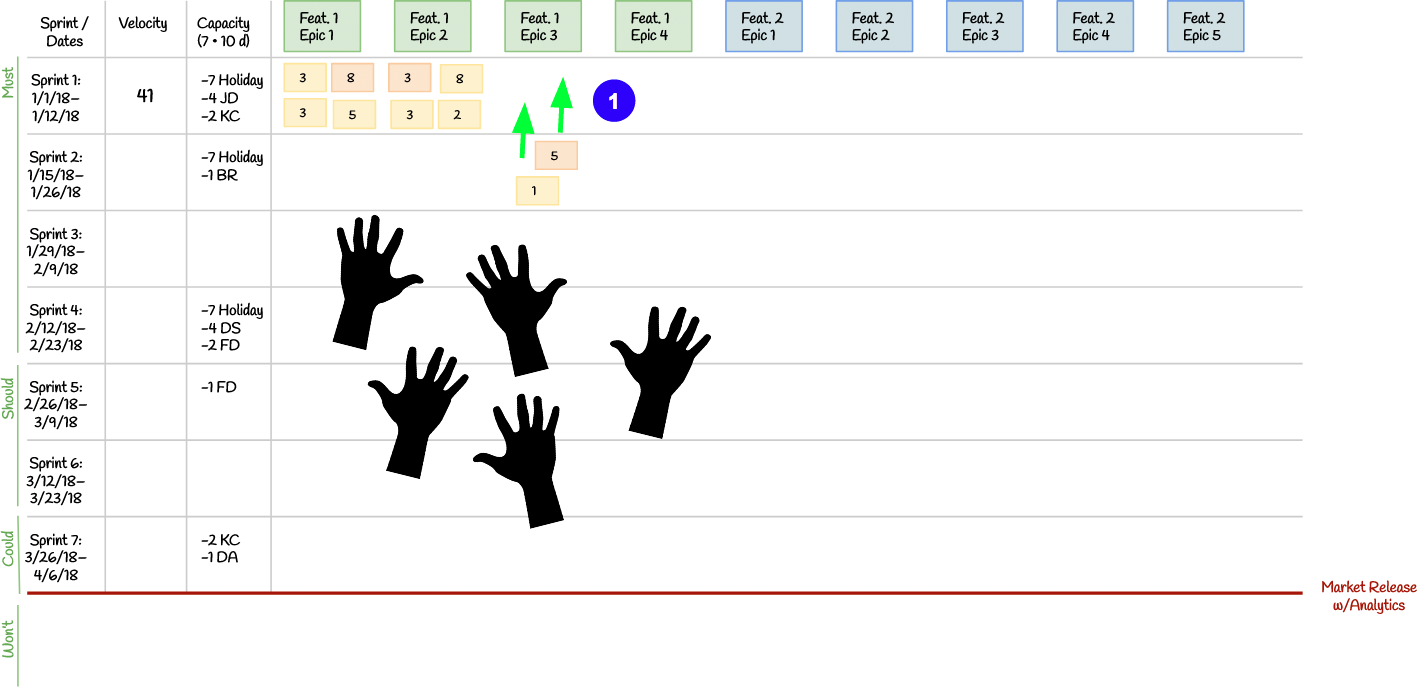
- This works the other way, too. Suppose the entire team votes 5. You might agree to add items to the sprint until you begin to hear a little bit of uncertainty.
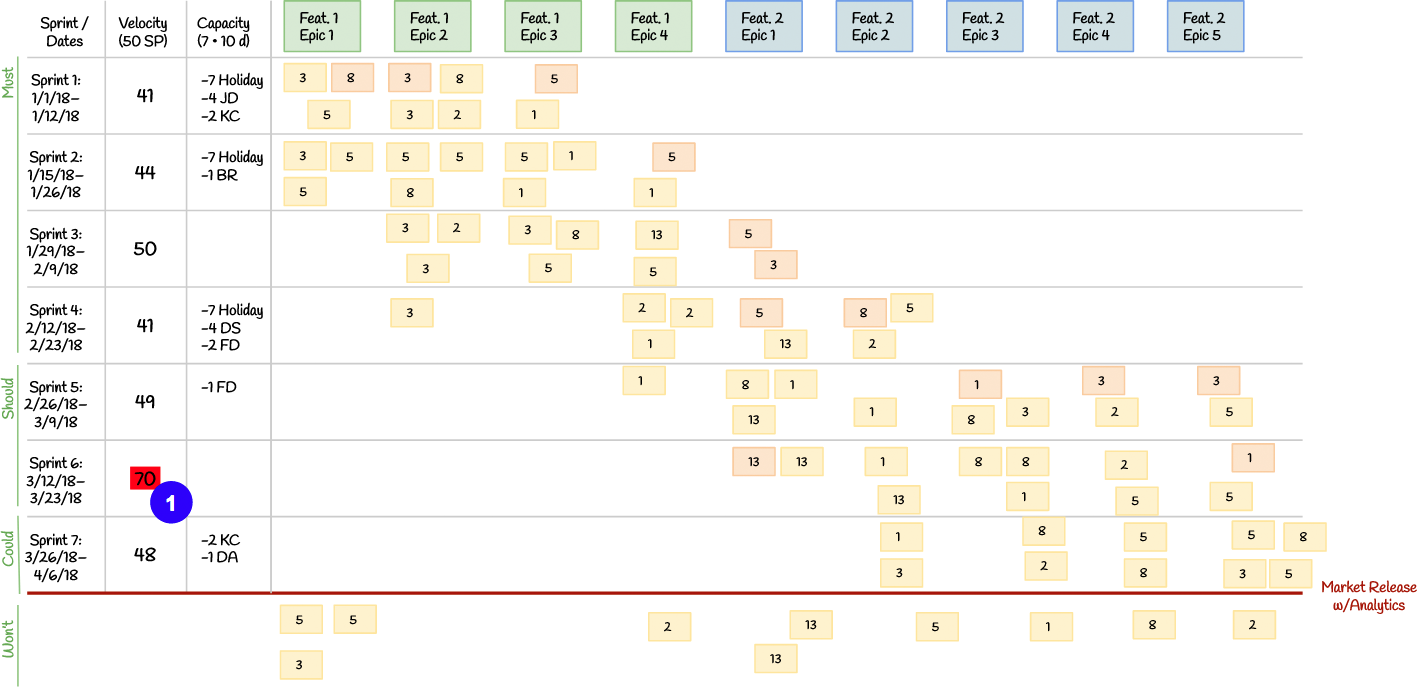
Finished! We’ve loaded up as many items we could into our release plan, based on conducting one or more rounds of “Fists-of-Five” voting for each sprint.
Your release plan won’t be terribly accurate, but at least you have much better picture of what the future looks like than you had before. It’s very important to update your release plan once you start getting more information about your true velocity.
- Tip: Sanity check your work based on the calculated velocity and capacity per sprint. The data suggests that this sprint might be overloaded.
Step 9: Identify Inter-Team Dependencies
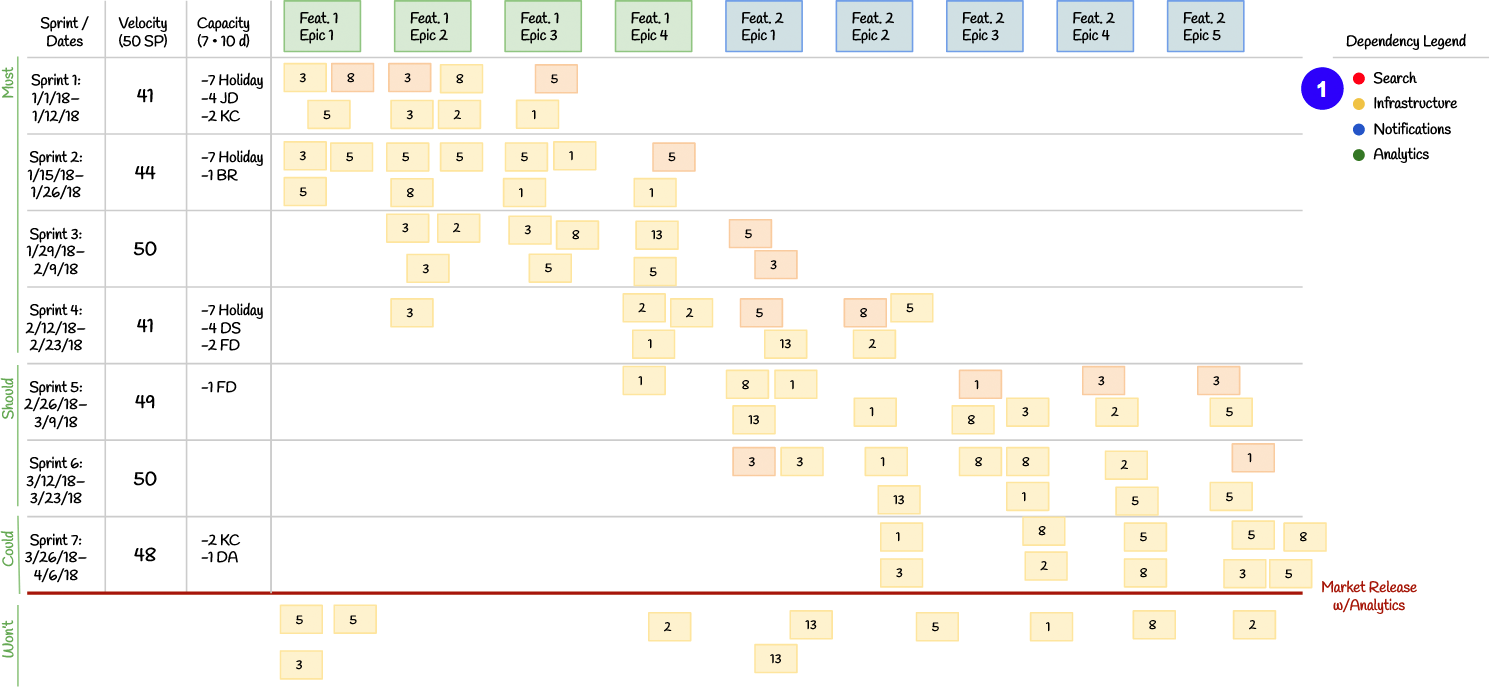
- Create a dependency legend for your four most common inter-team dependencies. If you’re using commercially-available, 1” colored dots to mark your dependencies, you’ll usually have four colors to work with.
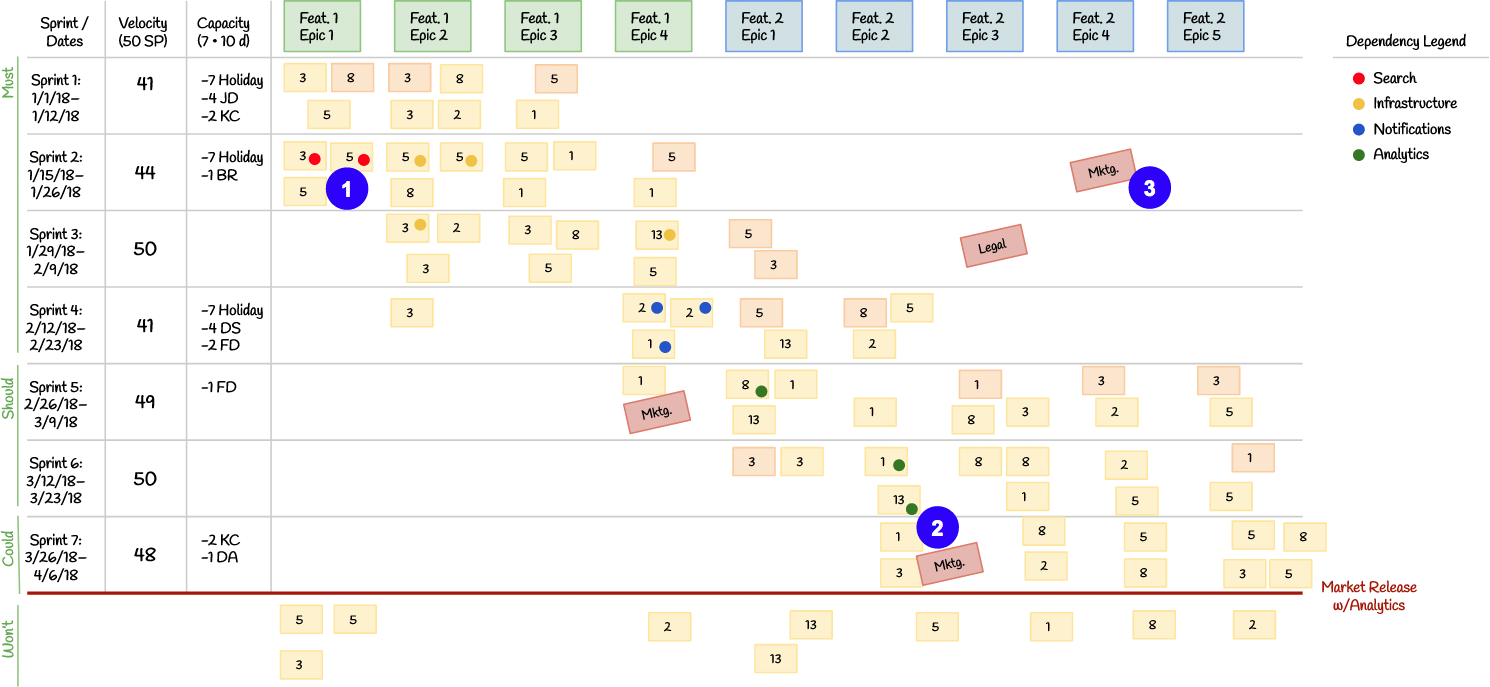
- Add dots per the color coding to identify your inter-team dependencies per backlog item. This will give your Product Owner the best possible chance to resolve the dependency before your sprint begins.
- You can also use a different-colored sticky note to identify other types of dependencies.
- These additional dependencies don’t have to be associated with items on your release plan, but they can be.
Tip: Most teams do this towards the end of the release planning event, but if you have a lot of dependencies it can be helpful to do when you load each sprint. That way, you can consider the dependency in your “Fists-of-Five” votes.
Step 10: Take a final “Fists-of-Five” Vote – Discuss, Adapt, and Re-Vote if Necessary
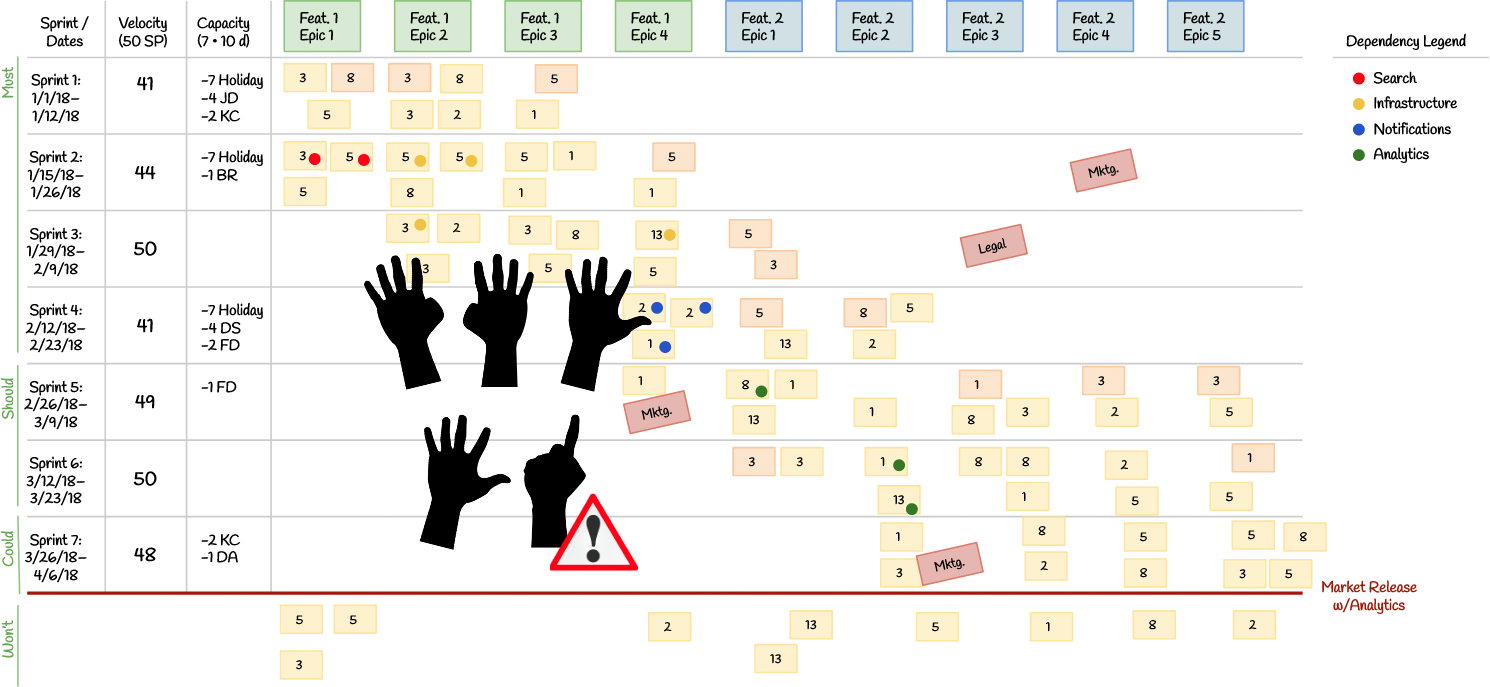
Take a moment to do another “Fists-of-Five” vote for the entire release plan. Discuss, adapt, and re-vote if necessary.
Tip: Now is a great time to ask your team if they see any possible risks to your plan. If so, inspect and adapt.
Step 11: Finished Release Plan
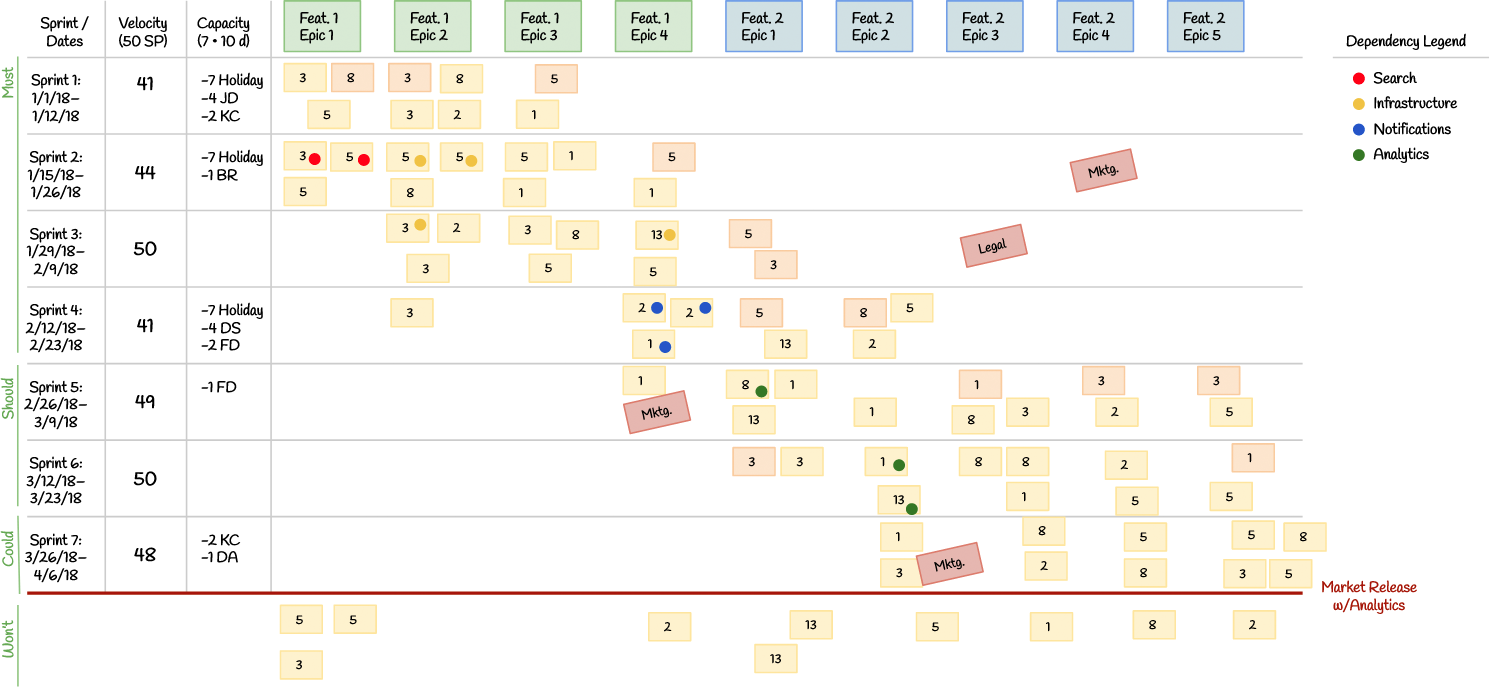
Notice that we’ve focused our effort on one feature, than the other. This reduces context-switching waste and allows us to ship a complete feature sooner.
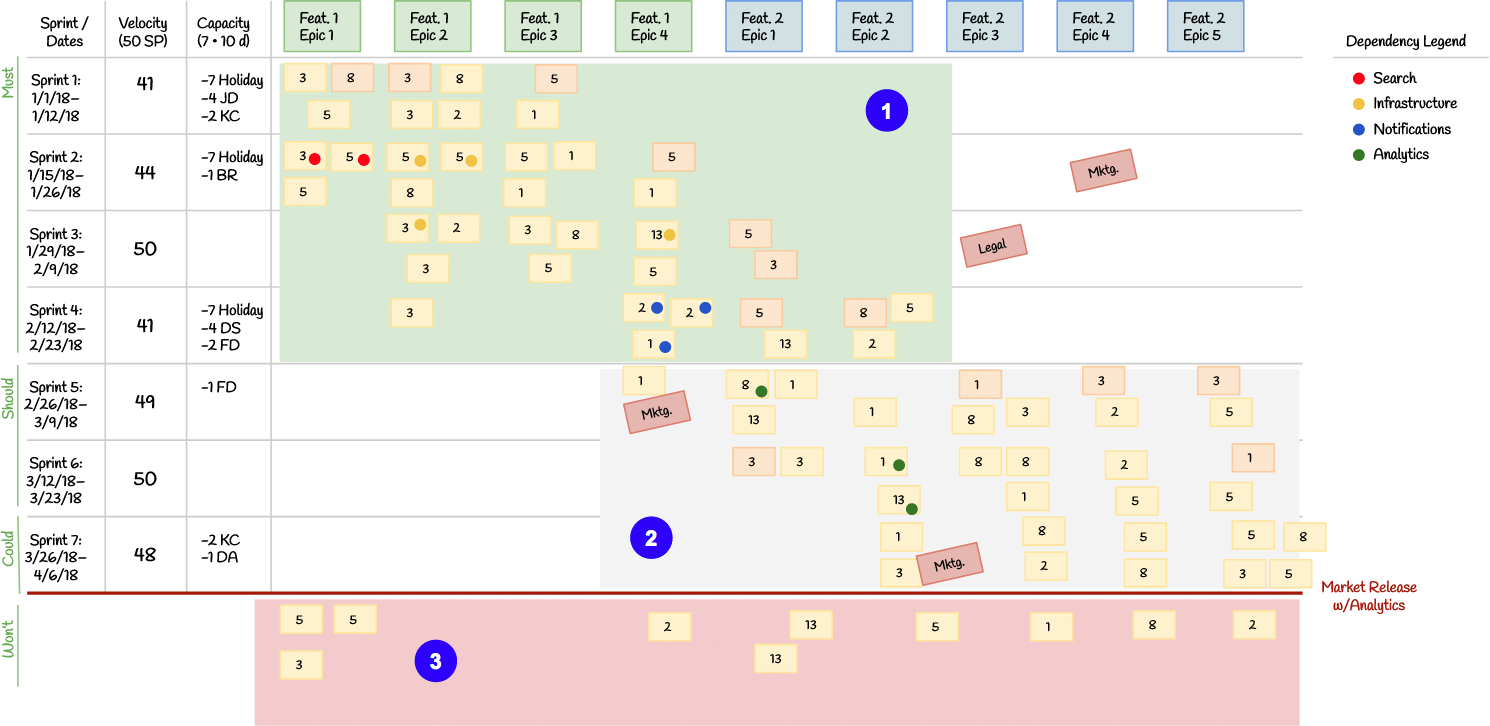
- Assuming that your dependencies come through in time, you don’t get many new items or changes, and your future velocity is similar to your historical velocity, you’ve got a good chance of finishing these Must-have backlog items within the release plan window.
- You might get these Should- and Could-have backlog items by the end of the release planning window. Don’t count on it for anything mission critical.
- Notice that these items are very unlikely to be completed by the end of the release planning window, so they’re Won’t-haves. Your stakeholders will be much happier that you’re telling them this now.
Step 12: Next steps
Shortly after release planning, the product owner should:
- Share your release plan with your stakeholders and dependent teams.
- Make sure they understand where backlog items, epics, and features wound up in terms of MoSCoW
- Make sure they understand what tradeoffs you will make when plans inevitably change
- Ensure teams that you are dependent on will deliver what you need on time, and vice-versa
- Load your release plan into JIRA
- Update your backlog items in JIRA.
- Create all upcoming sprints and slot items in correctly.
- Hint: Keep track of the expected capacity and velocity for each future sprint
- Add known dependencies and estimates to backlog items
- Be sure to indicate which items officially meet your Definition of Ready. One way to do this is to prefix the title of Ready backlog items with an asterisk. Items that aren’t marked this way need to go through refinement and may not have reliable estimates.
- Brainstorm any additional risks and come up with mitigation strategies.
After each sprint, the product owner should:
- Update future sprints in JIRA based on what was actually accomplished each sprint
- Move backlog items around to reflect the new reality
- Update your stakeholders and dependent teams with changes
- Hint: You can go over this at Sprint Review or in a recap email shortly afterwards
Step-by-Step Release Planning Instructions for Kanban Teams
Step 0: Prerequisites for Release Planning
Before you begin release planning, you’ll want to have these prerequisites in order for each team participating in planning:
Must-have
- Travel and accommodations
- Known release planning window (typically 2-4 months)
- Key milestones and dates
- Product vision and roadmap
- Alignment with stakeholders on what you hope to work on during this planning window
- Known, stable team roster
- Enough right-sized, well-formed backlog items to cover the entire planning window (Acceptance Criteria not required)
- Definition of Done
- Adequate architectural and design runway
- Calculate historical velocity
Should-have
- Discuss the Trade-off Matrix with your stakeholder and choose which of scope, schedule, and resources will be fixed, firm, and flexible
- Write backlog items on sticky notes in advance (see step 5)
- Prioritize backlog items (or at least know their MoSCoW)
- Call out dependencies if known
- Definition of Ready, Working Agreement
- Ask team members to plan PTO through the release planning window in advance to extent possible
Could-have
- Build a story map
- Estimate backlog items in advance
- Have refined backlog items that meet your team’s Definition of Ready (this will make your release plan more accurate, but the time it takes you to do this may be wasted if your plans change)
Step 1: Create the Board with Pseudo-Sprints and Dates
Make your white-board or foam-core board look like this:
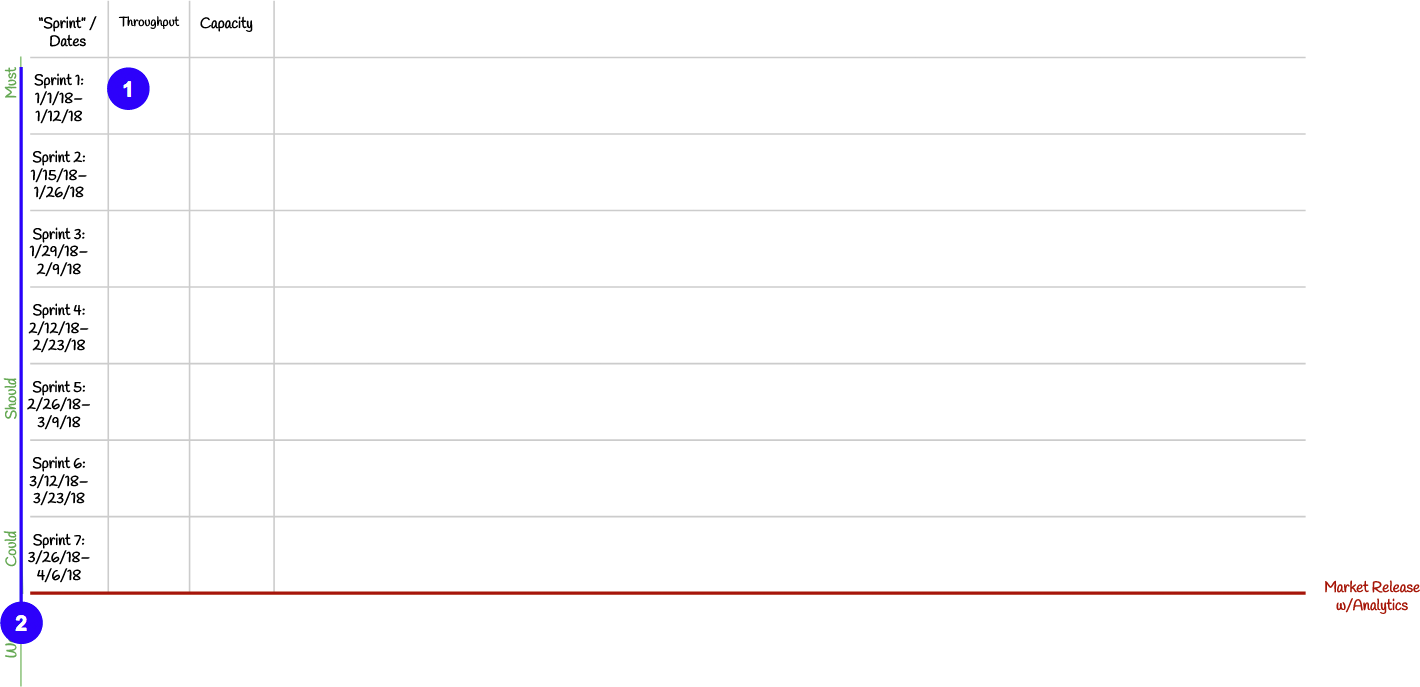
- For each “sprint,” indicate the “sprint” number, start date, and end date.
- Plan as many “sprints” as you like. Fewer than 4 “sprints” isn’t particularly useful, more than 8 takes too long for many teams. Many programs find it useful for every team to plan together once per quarter.
Tip: Kanban generally prescribes just-in-time planning. It’s more commonly used by interrupt-driven teams, such as customer service and operations. Feature-oriented teams can still use Kanban. When conducting release planning, it can be helpful to break down the release planning window into “pseudo-sprints,” even if you don’t explicitly follow them. This makes collaborating with other teams, planning capacity, understanding MoSCoW, and resolving dependencies easier.
Tip: If you do this on one or more 4’ x 8’ foam-core boards, you’ll be able to move your release plan to your team area after release planning. This makes reflecting your backlog items and release plan in JIRA easier. You can also keep this physical board up-to-date so that it acts as a physical information radiator for other teams and stakeholders.
Understanding MoSCoW: Must-, Should-, Could-, and Won’t-Have
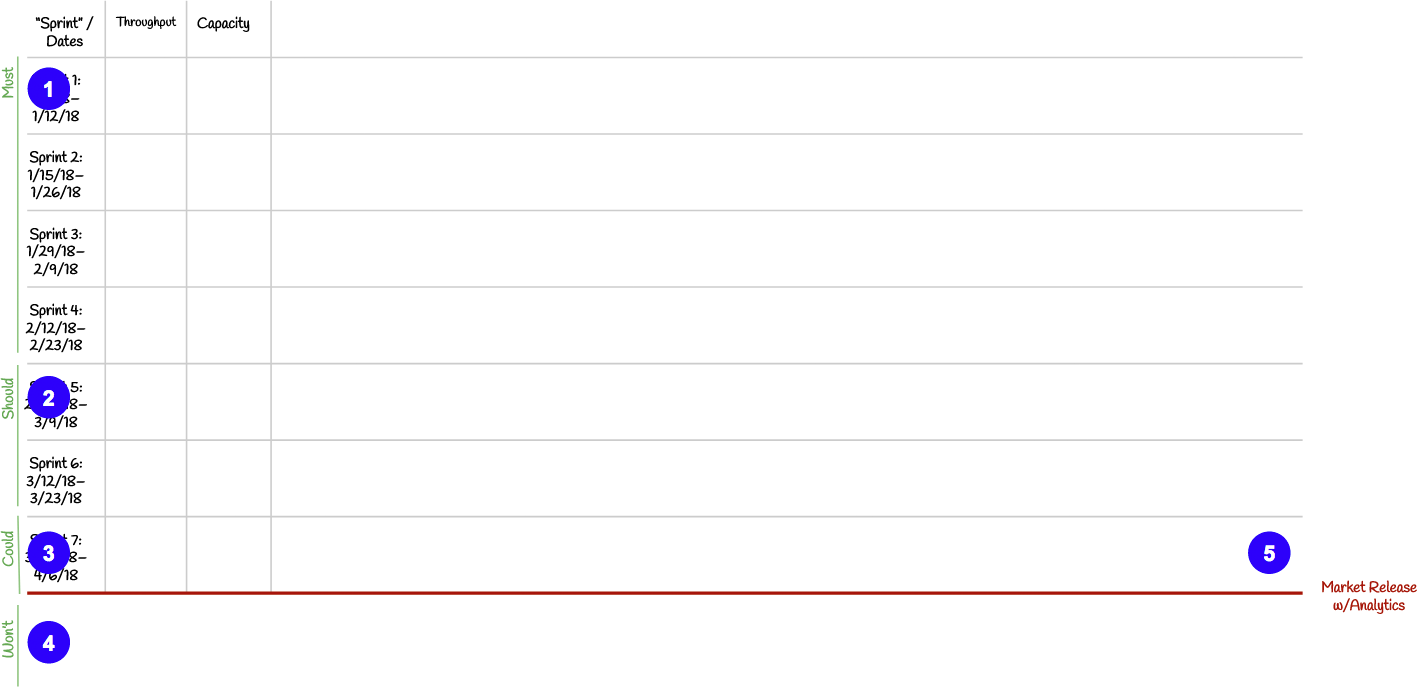
Note that we’ve indicated Must, Should, Could, and Won’t to the left of the board.
- Must-have means exactly that. If even one must have condition isn’t present by the time we want to release, we won’t release. They are critical to the project’s success. These should be no more than 60% of your release scope. If your team is new and doesn’t have a known, stable throughput, consider limiting this to 40%.
- Should-haves are also important, but not absolutely necessary for the release. Limit these to about 20%.
- Could haves are desired but not necessary. If we’ve got the time and resources, we’ll include them in the release. These make up the balance.
- Having a “Won’t” section allows us to give early warning to stakeholders about the desired backlog items that are unlikely to be in the release.
- If you’re working towards a release or major milestone, indicate it in your plan. It can be located anywhere, it doesn’t have to be at the end. Adjust your MoSCoW indicators accordingly.
Step 2: Add In Your Features, Epics, and/or Activities
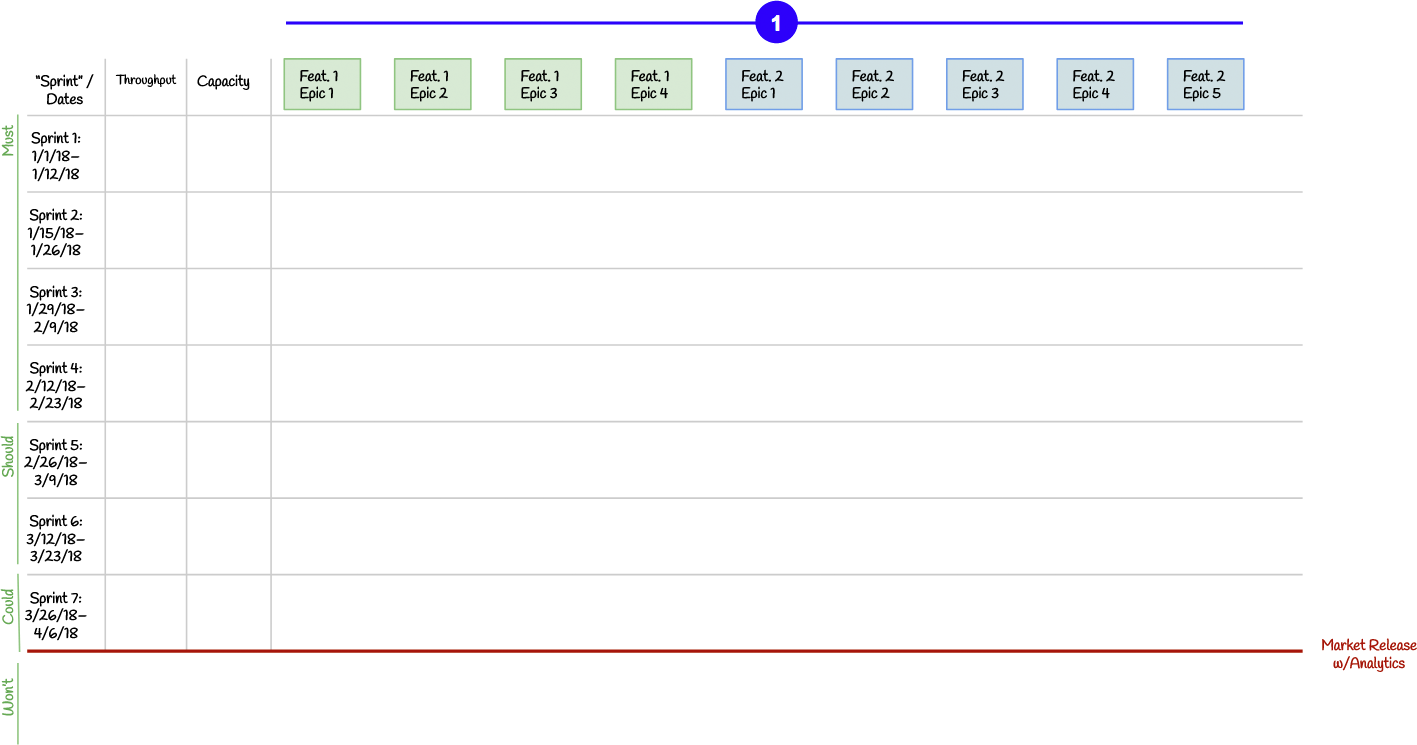
- Add sticky notes at the top of your release plan for each epic. It can be helpful to color-code these stickies based on the feature it relates to. Alternatively, you can use the sequence of activities from your story map.
Step 3: Determine Capacity
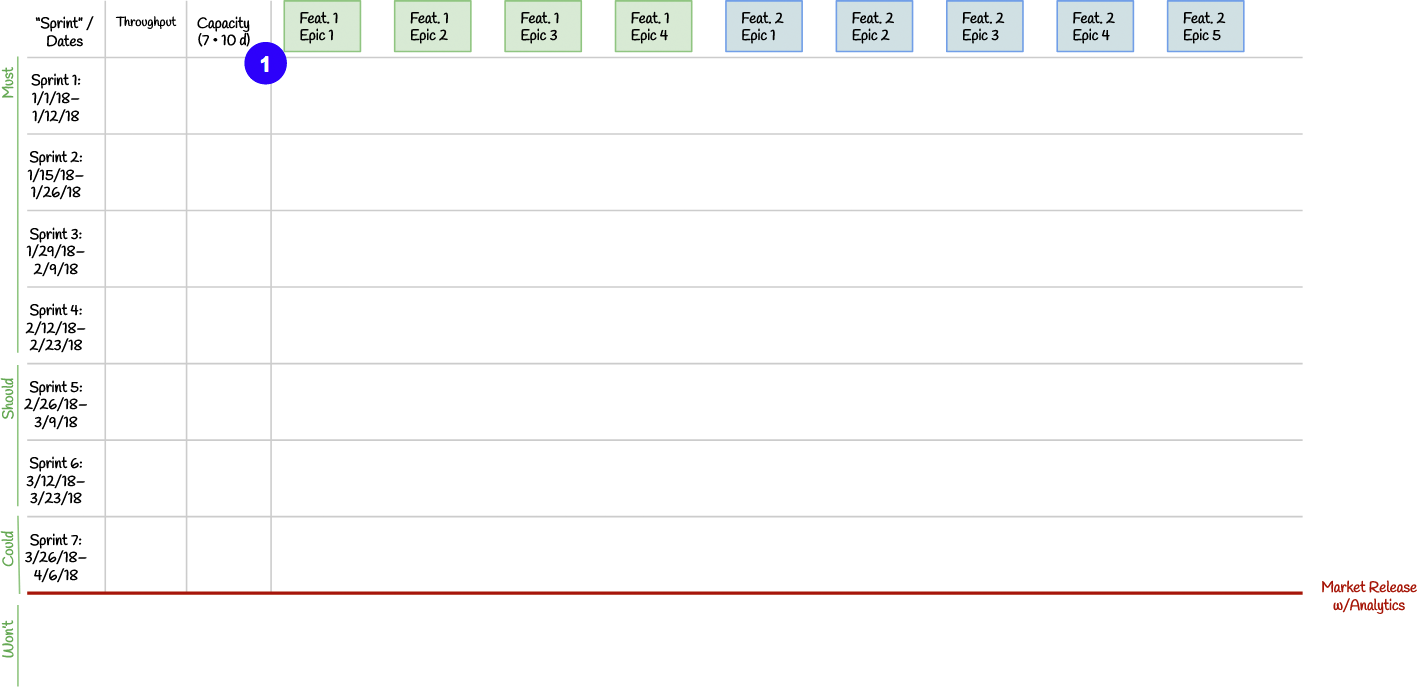
Your default capacity is the number of full-time developers (including user experience researchers) on your team, times the number of days in your sprint. This team has seven developers and is planning two-week sprints, so their capacity is 70 days per sprint.
Tip: Yes, it’s true that your development team will spend about 10% of their time in Scrum events. It’s not usually worth calling this 4.5 or 9 days as this statistic is used in a scaling function for throughput and the additional 10% of precision is well within your estimate margin of error.
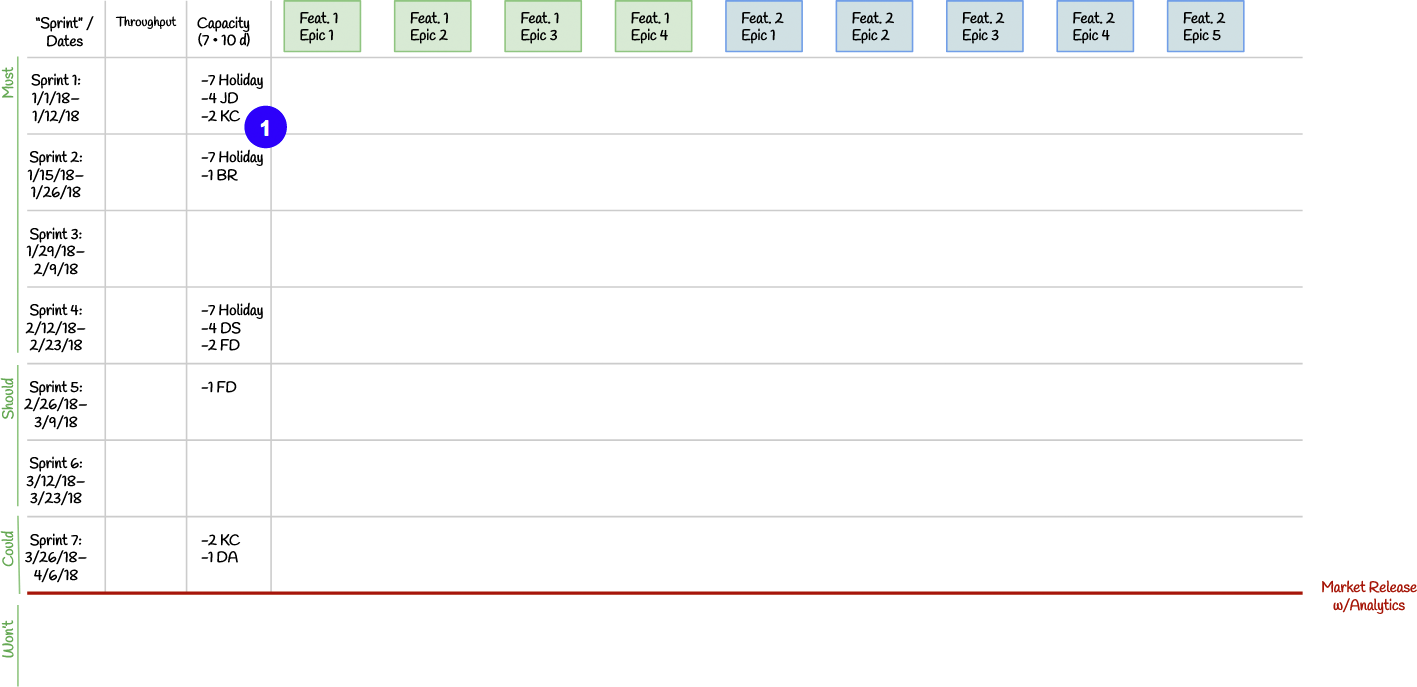
- Now, subtract capacity for each holiday, off-site (or similar), and expected PTO day. In Sprint 1, we have the New Year’s Day holiday, which means we are deducting 7 days as all 7 developers will take this day off. JD is taking the rest of the first week of January off, so we’ve deducted another 4 days. KC expects to take a couple of days off in the second week.
We don’t have currently any offsites planned in this Release Planning window, so they won’t appear on the release plan.
Tip: It’s perfectly OK if not everyone knows the exact PTO days they’ll be taking off in the Release Planning window. This plan is a forecast—not a commitment—and will inevitably change as time goes on. Do the best you can with the data you have today.
Step 4: Determine Throughput for Each Sprint if Historical Throughput is Known
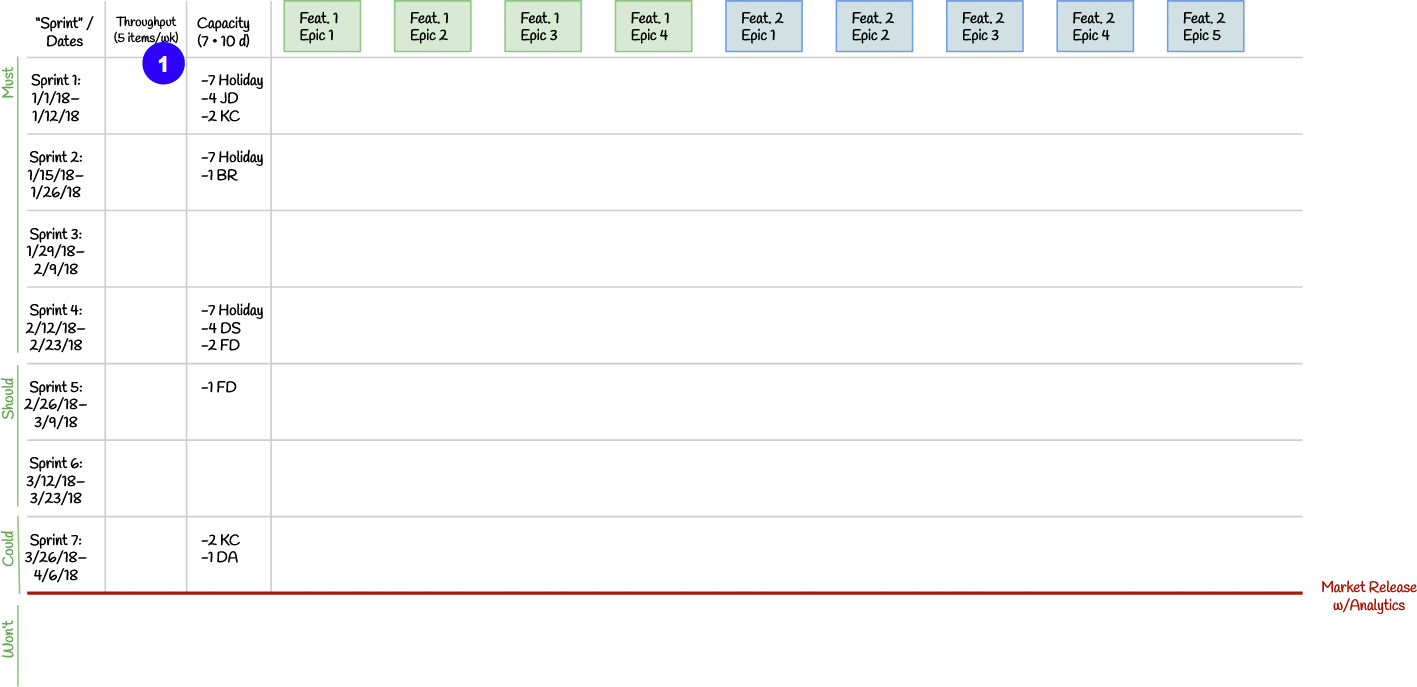
- Calculate your historical throughput at full capacity based on the last few months. This is the number of backlog items you complete per week on average. Even if you only have a couple of weeks worth of data.
Warning: This approach only works well if your backlog items are similarly-sized. You can create “half-,” “full-,” and “double-sized” backlog items with this approach and get reasonably-accurate results. This gives you a “dynamic range” of only 4x: your largest item is no more than 4x the size of your smallest item.
If there is wider variation in your item sizes, you may wish to use story points. This will give you a much larger dynamic range of 13–26x (for teams that use story points ranging from ½ or 1 to 13). In that case, follow the Release Planning instructions for Scrum, which introduces story points. You can estimate a few previously-completed backlog items and compare it to your known throughput to get a reasonable estimate of your throughput.
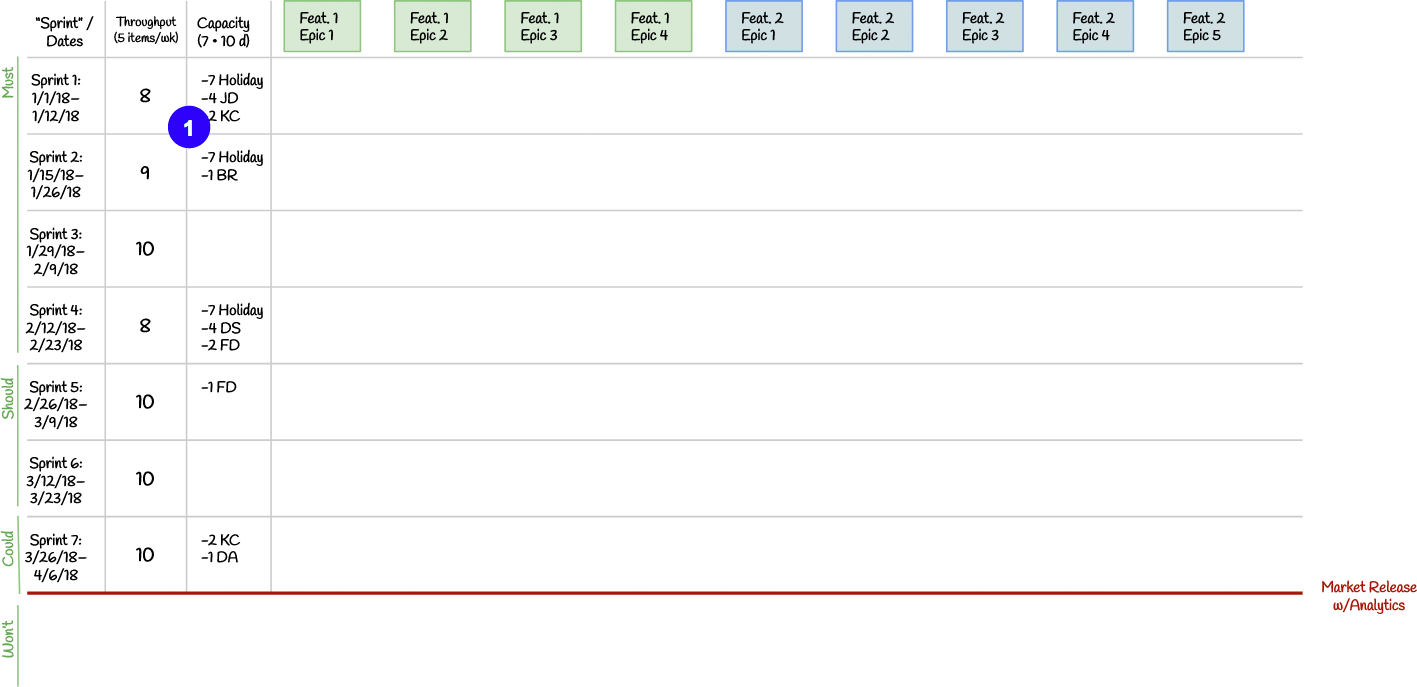
For each “sprint,” calculate the number of backlog items you expect to complete, adjusted for capacity.
- In this sprint, our effective capacity is: (70-7-4-2)/70 = 57/70 = 81%. We then multiply the full-capacity throughout by the effective capacity, then round up or down. Thus our throughput is: 5 items per week * two weeks * 81% = 8.1 items ≅ 8 items.
Step 5: Write Backlog Items on Stickies
(The product owner should do this earlier, but now’s the last possible moment.)
Using fine point Sharpie® markers—(not pens, they’re much harder to read at a distance—write backlog items on individual 3” x 5” sticky notes:
- Write the backlog item number from JIRA if you’ve got it. Don’t waste your time writing the prefix if it’s consistent across all items.
- Write the Feature and Epic in the corner if the backlog item is associated with one. Acronyms and shorthand are fine.
- This is the backlog item’s title. In this case, this is a well-formed user story. Note that it doesn’t have to meet the Definition of Ready or have fully-defined acceptance criteria yet.
- If you’re using “half-,” “full-,” or “double-sized” backlog items, leave about a square inch or two in a bottom corner to write this in later. You don’t need to draw a box, just reserve some space.
- If your product owner knows in advance, it can be useful to note a backlog item as a Must-, Should-,or Could-have. This is a Should-have. This makes loading items later easier.
- Leave about a square inch or two in the other bottom corner to indicate dependencies with a label or acronym.
- You can use different-colored stickies to indicate different types of items if it’s helpful. In particular, I like to use a different color for functional spikes (design, UX, etc) items because they generally rely most on a single user experience researcher. This can help prevent someone from getting swamped if the items are otherwise within the sprint’s point budget.
Tip: 3M® Post-It® Super-Sticky notes work so much better than the generic ones typically in an office that the price difference and effort to obtain them is well worth it. Otherwise, your sticky notes are almost guaranteed to start falling off the wall during release planning unless you tape them up. This lesson is hard-learned.
Step 6: (Optional) Estimate Backlog Items
(The whole team could do this earlier, but now’s the last possible moment.)
If your backlog items aren’t very homogeneous in size, consider estimating them as either “half-sized,” “full-sized,” or “double-sized.” Working together as a team, simply sort the stickies in one of three piles: half, full, and double. It can be helpful to have a few previously-completed backlog items in each pile to act as a reference point.
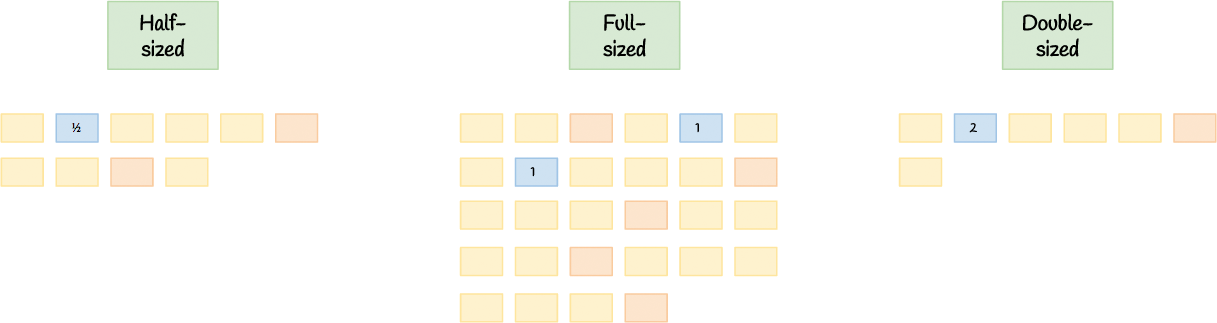
When you’re done, write the item’s size on each sticky in the space you reserved for this purpose.
Step 7: Break Down Large Backlog Items
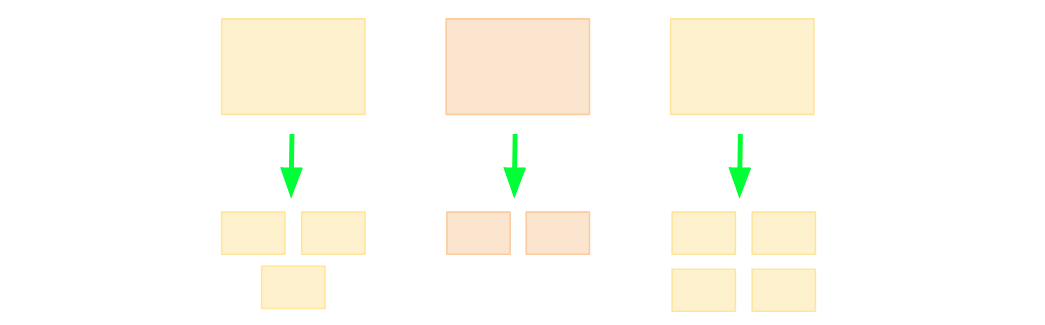
Given that you’re estimating backlog items that don’t meet the Definition of Ready, it’s common to find backlog items at release planning that are too large to pull into your Kanban flow.
Use your best judgement on what backlog items to break down. Do your absolute best to keep all of your backlog items, even these new smaller ones, vertically-sliced.
Step 8: Load Backlog Items Into Pseudo-Sprints
When Throughput is Known: Respect the Throughput
This example assumes that all of your items are very similarly sized, so they all count as “full-sized” backlog items.
If you’re using the “half-,” “full-,” and “double-sized” items, the logic is self-explanatory.
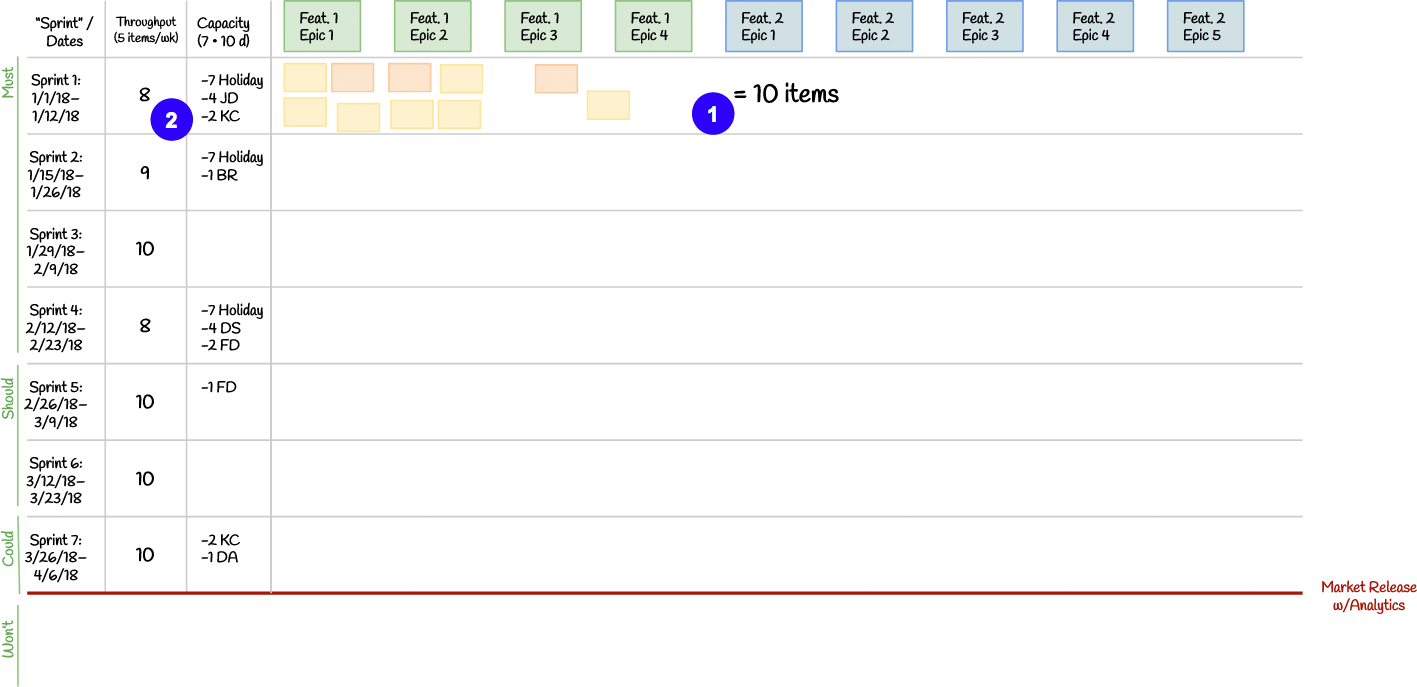
- We’ve selected ten items for this “sprint…”
- …but our expected throughput this sprint is only eight items due to the holiday and two people taking PTO.
Keep it empirical. If you think you can go faster than the data tells you, start with what you can afford based on the evidence and add more items when all other work has been completed.
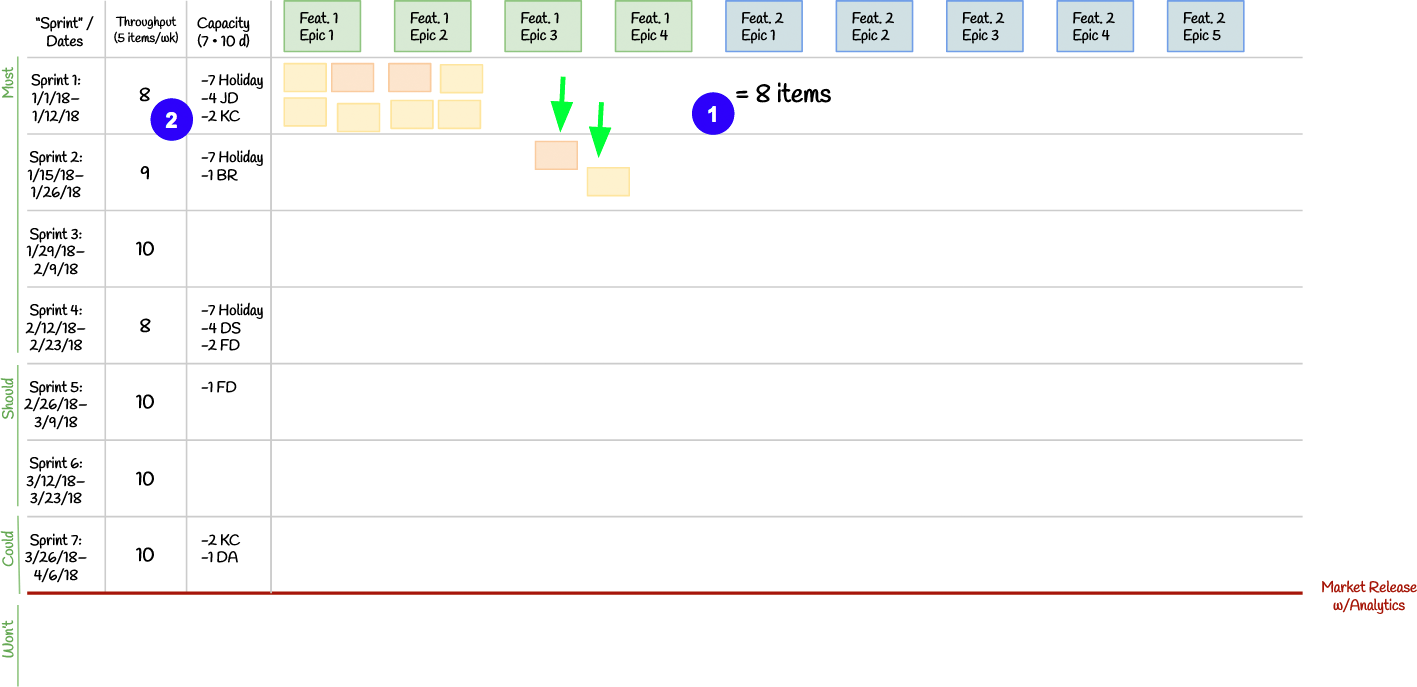
- We’ve moved two backlog items into the next sprint…
- …so that we respect our sprint budget of eight items.
This isn’t such a bad thing. Working on three epics in this pseudo-sprint—rather than four—means we’ll be a bit more focused. This will make our review a bit more focused, too.
Tip: This example shows that we are loading up the “sprint” to 100% of the predicted throughput. This only works when we have a very good sense of the backlog items we’ll be working on over the release planning window. If your backlog items aren’t particularly firm yet, you may wish to only load up to 60-80% of your throughout for each sprint.
Kanban is a continuous-flow process, so you’ll move at the rate that you do. If you find that fewer new backlog items are created mid-release than budgeted, you’ll make faster progress on your release plan than expected.
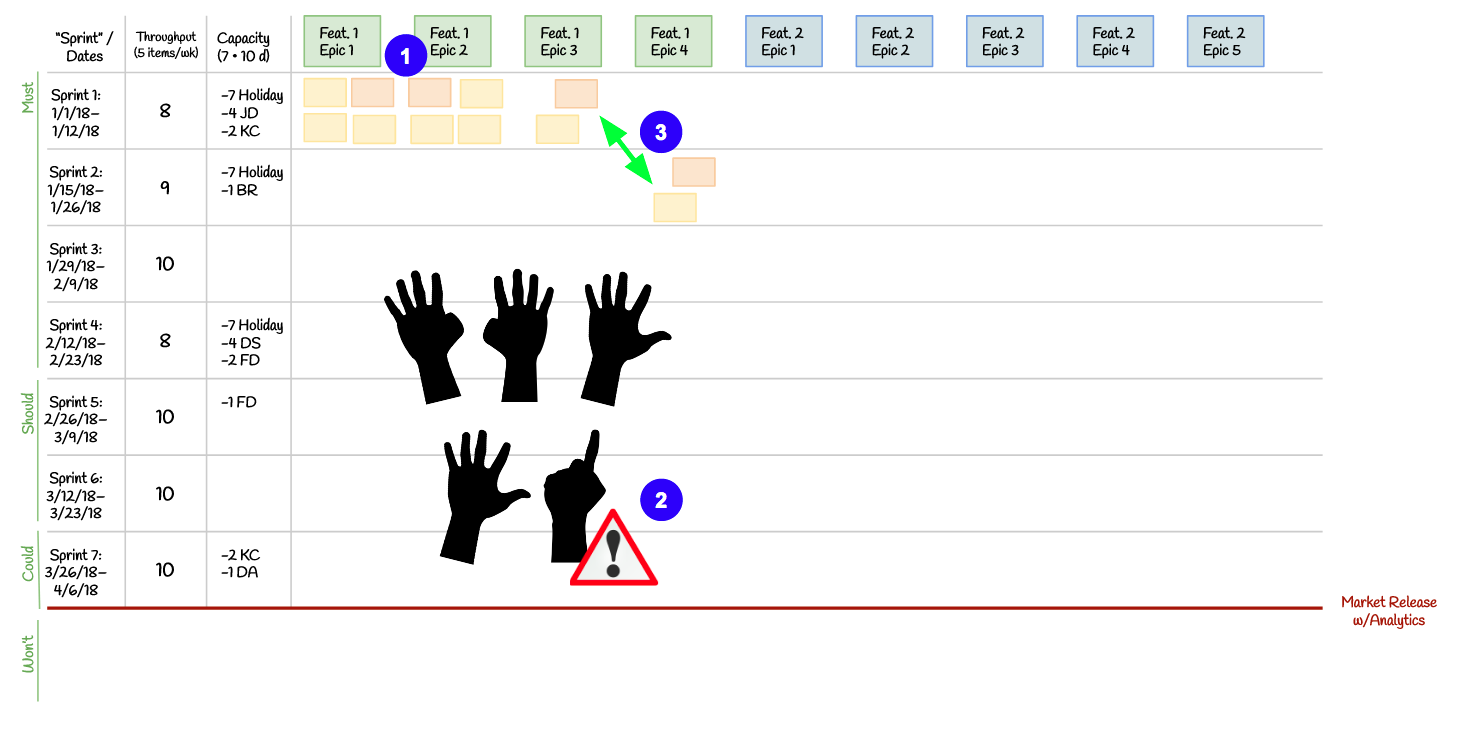
Now that you’ve loaded up a sprint, take a moment to do a “Fists-of-Five” vote with your team to do a “gut check” of your plan.
- “Sprint” 1 still has a lot of functional spikes.
- Your software developers might be happy, but your user experience researcher might object….
- …and ask you to swap in a different backlog item.
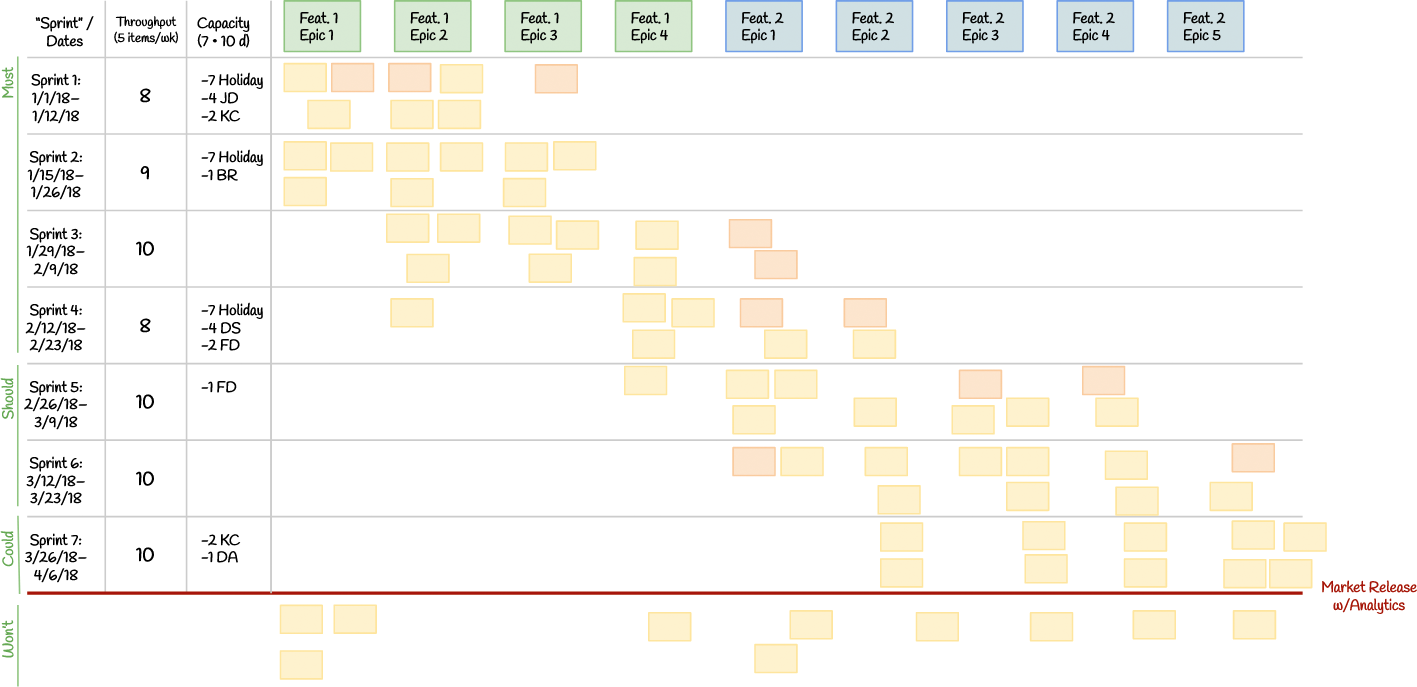
Finished! We’ve loaded up as many items we could into our release plan, respecting expected throughput for each and every “sprint.”
This example assumes that all of your items are very similarly sized, so they all count as “full-sized” items.
If you’re using “half-,” “full-,” and “double-sized” backlog items, the approach is self-explanatory.
When Throughput is Unknown: Use the Fists-of-Five Approach
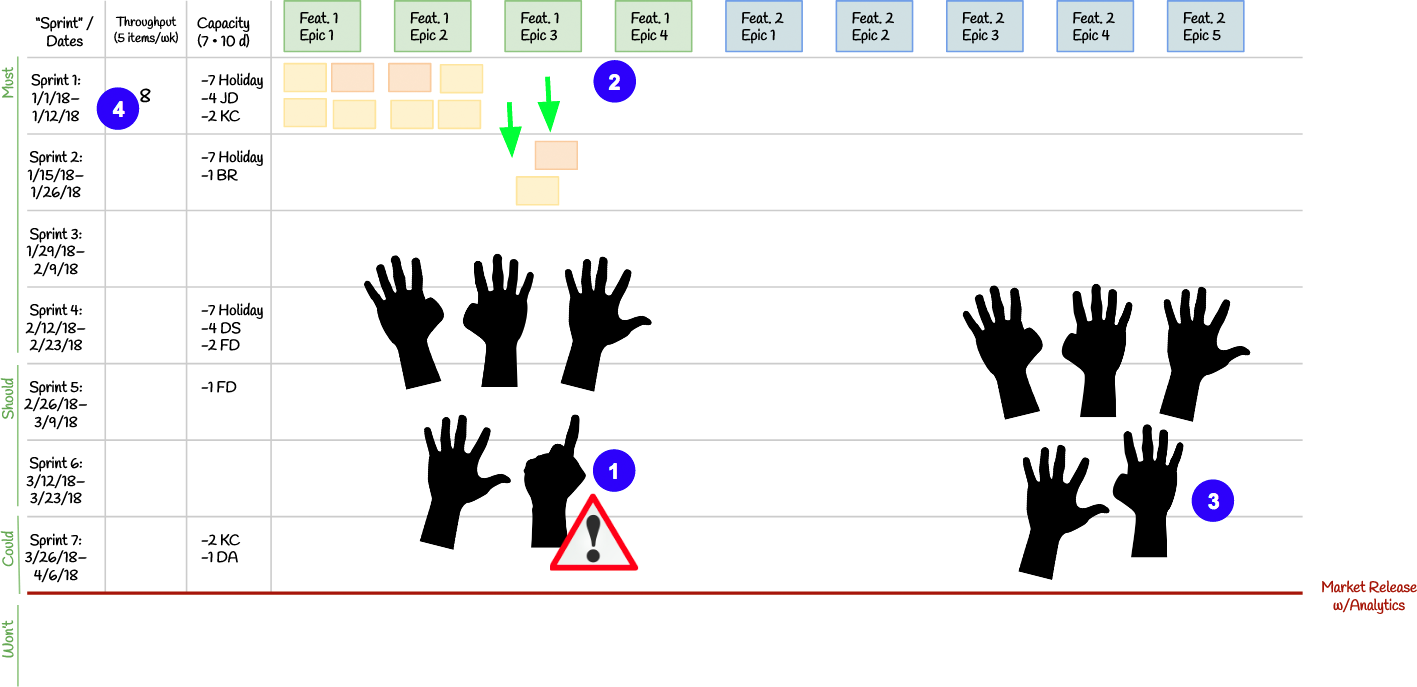
When your historical throughput is unknown, take a “Fists-of-Five” vote for each “sprint’s” collection of items accounting for capacity, then simply writing down the resulting throughput.
In this example,
- the team started off with ten items but the user experience researcher was concerned about the two items related to Feature 1, Epic 4 due to their workload for the other three epics.
- The team decided to move these two items to the next sprint.
- The team voted again and everyone voted a 4 or 5,
- resulting in an eight-item sprint.
Remember to leave some buffer if your backlog items for the release plan window aren’t particularly firm yet.
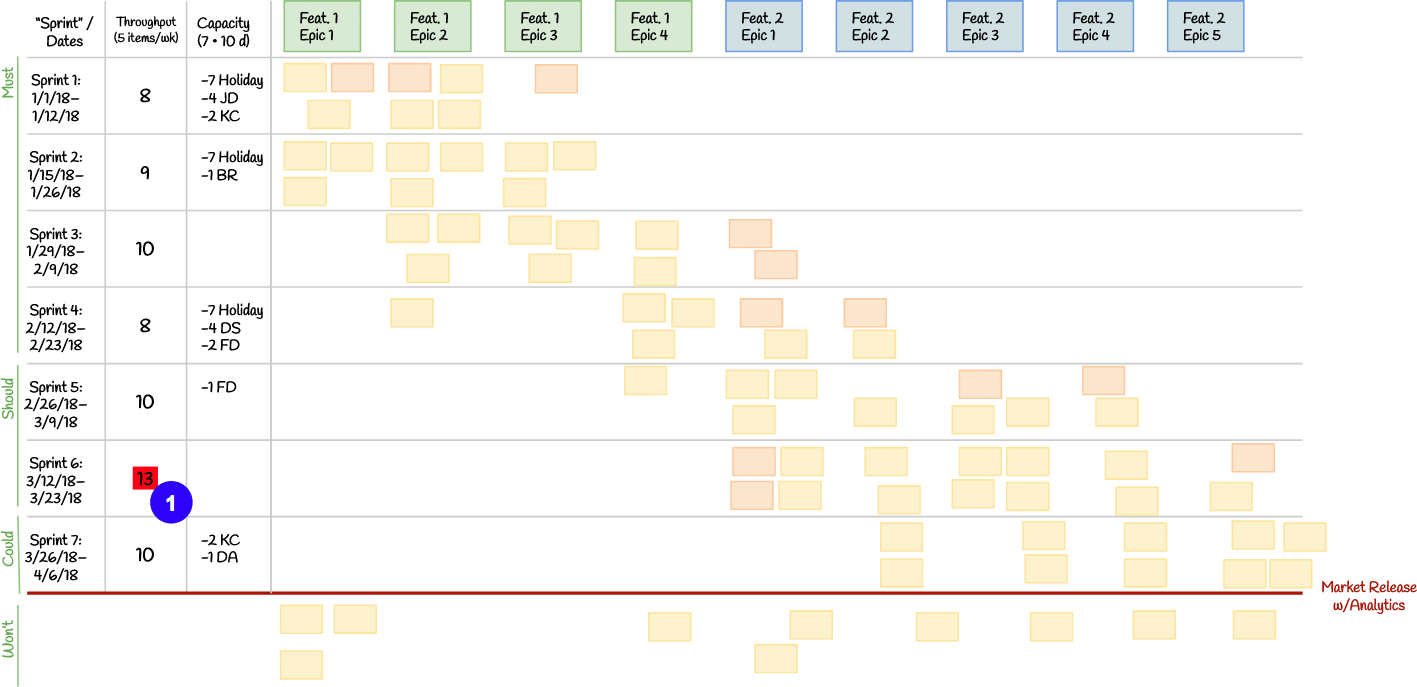
- Sanity check your work based on the calculated throughput and capacity per sprint. The data suggests that this sprint might be overloaded.
Finished! We’ve loaded up as many items we could into our release plan, based on conducting one or more rounds of “Fists-of-Five” voting for each sprint.
Your release plan won’t be terribly accurate, but at least you have much better picture of what the future looks like than you had before. It’s very important to update your release plan once you start getting more information about your true throughput.
Step 9: Identify Inter-Team Dependencies
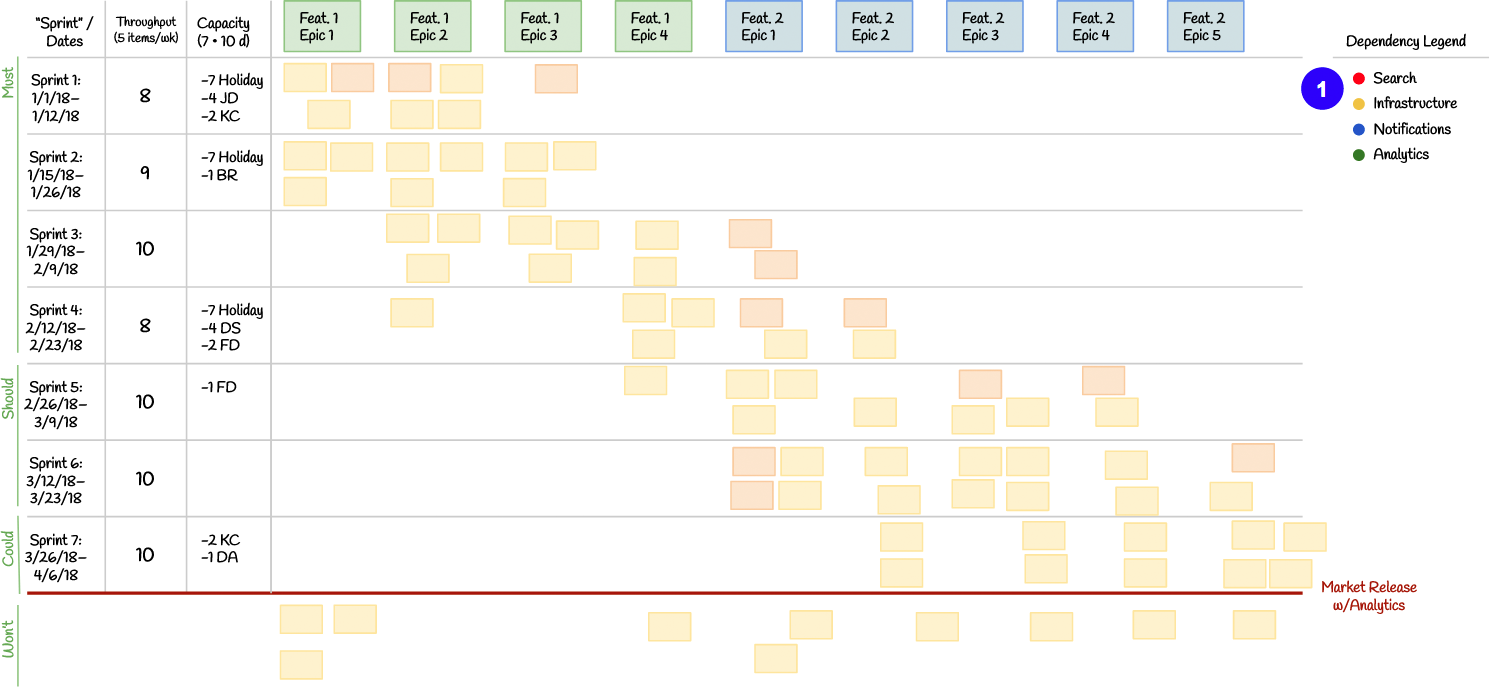
- Create a dependency legend for your four most common inter-team dependencies. If you’re using commercially-available, 1” colored dots to mark your dependencies, you’ll usually have four colors to work with.
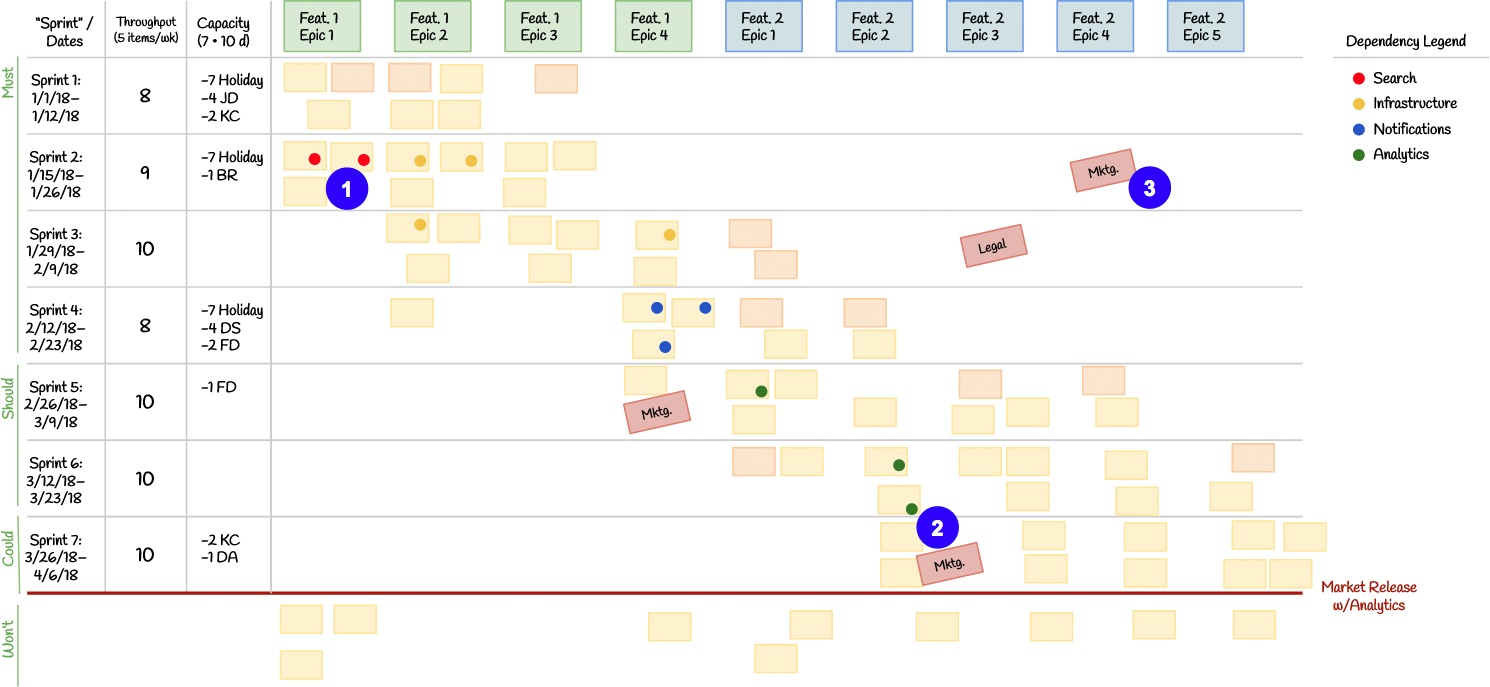
- Add dots per the color coding to identify your inter-team dependencies per backlog item. This will give your Product Owner the best possible chance to resolve the dependency before your sprint begins.
- You can also use a different-colored sticky note to identify other types of dependencies.
- These dependencies don’t have to be associated with items on your release plan, but they can be.
Tip: Most teams do this towards the end of the release planning event, but if you have a lot of dependencies it can be helpful to do when you load each sprint. That way, you can consider the dependency in your “Fists-of-Five” votes.
Step 10: Take a final “Fists-of-Five” Vote – Discuss, Adapt, and Re-Vote if Necessary
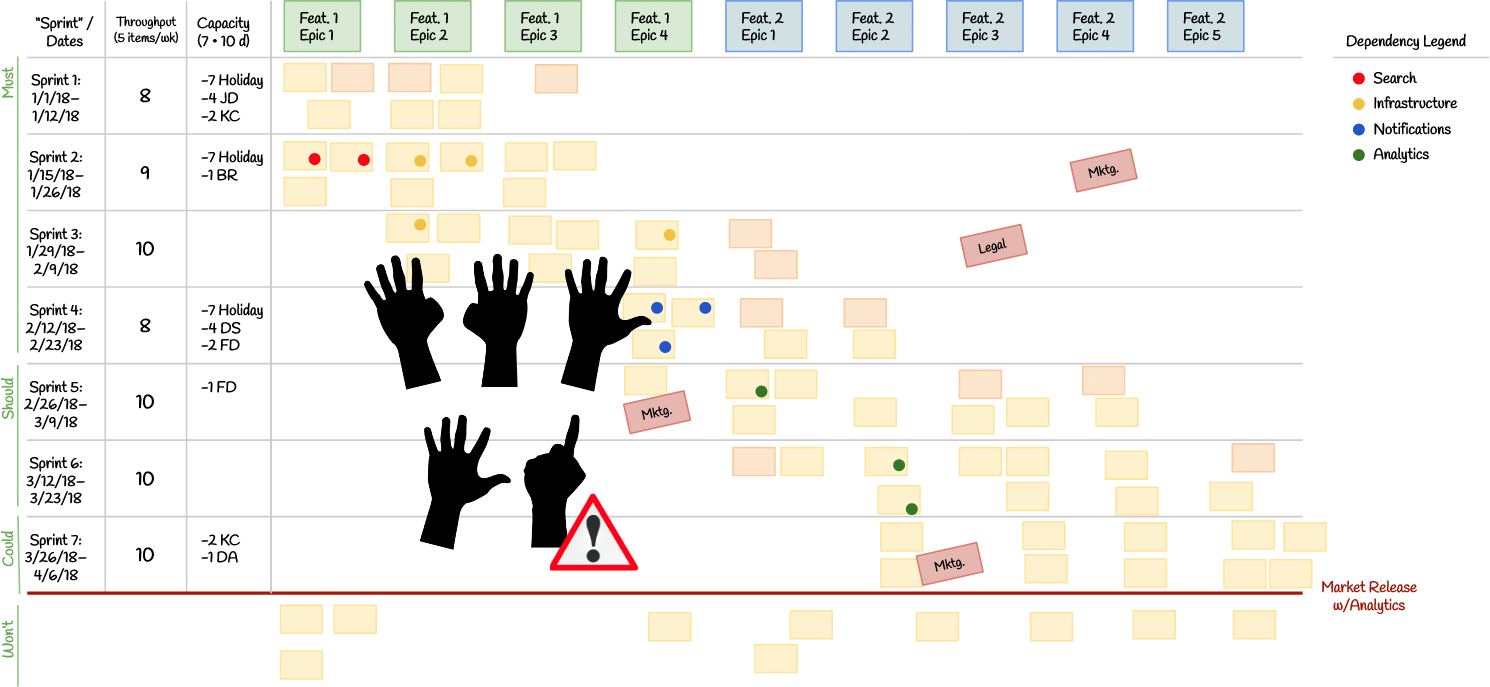
Take a moment to do another “Fists-of-Five” vote for the entire release plan. Discuss, adapt, and re-vote if necessary.
Tip: Now is a great time to ask your team if they see any possible risks to your plan. If so, inspect and adapt.
Step 11: Finished Release Plan
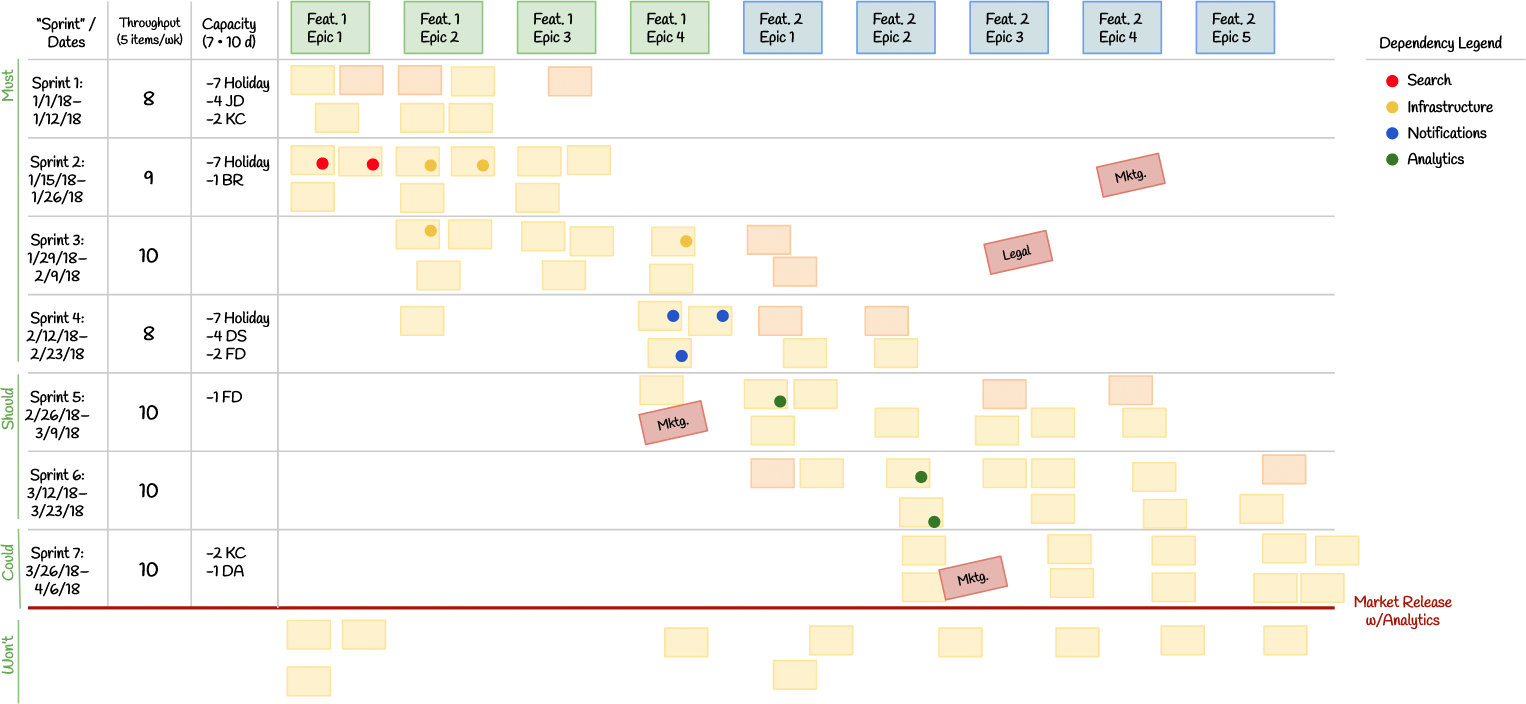
Notice that we’ve focused our effort on one feature, than the other. This reduces context-switching waste and allows us to ship a complete feature sooner.
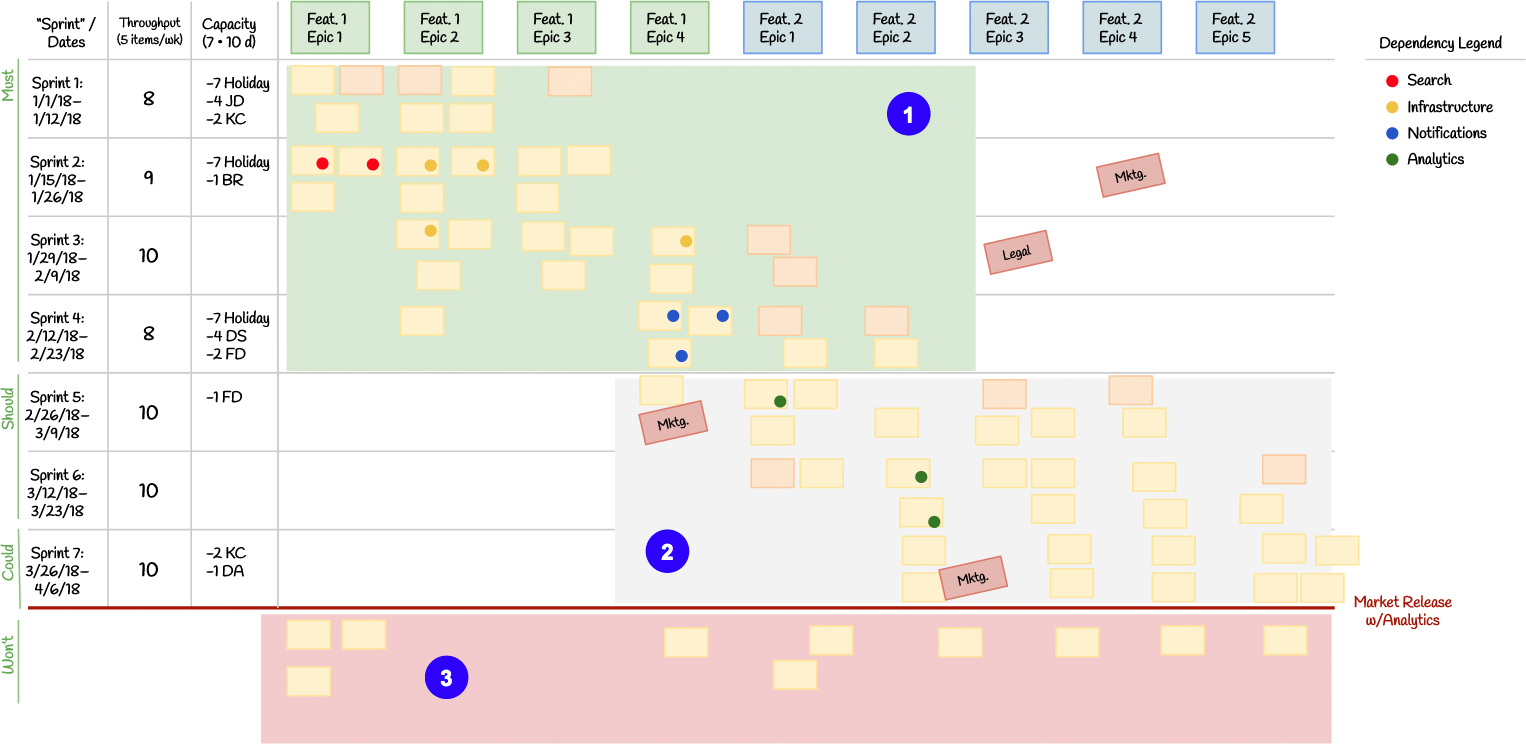
- Assuming that your dependencies come through in time, you don’t get many new items or changes, and your future throughput is similar to your historical throughput, you’ve got a good chance of finishing these Must-have backlog items within the release plan window.
- You might get these Should- and Could-have backlog items by the end of the release planning window. Don’t count on it for anything mission critical.
- Notice that these items are very unlikely to be completed by the end of the release planning window, so they’re Won’t-haves. Your stakeholders will be much happier that you’re telling them this now.
Step 12: Next steps
Shortly after release planning, the product owner should:
- Share your release plan with your stakeholders and dependent teams.
- Make sure they understand where backlog items, epics, and features wound up in terms of MoSCoW
- Make sure they understand what tradeoffs you will make when plans inevitably change
- Ensure teams that you are dependent on will deliver what you need on time, and vice-versa
- Load your release plan into JIRA
- Update your backlog items in JIRA, including the ordering.
- It’s up to you if you want to add your half/full/double estimates to JIRA.
- Add known dependencies to backlog items.
- Be sure to indicate which items officially meet your Definition of Ready.
- For Kanban teams, it’s usually just fine to use a “Ready” queue.
- Another way to do this is to prefix the title of Ready backlog items with an asterisk. Items that aren’t marked this way need to go through refinement and may not have reliable estimates.
- Update your backlog items in JIRA, including the ordering.
- Brainstorm any additional risks and come up with mitigation strategies.
Every couple of weeks, the product owner should:
- Update your stakeholders and dependent teams with changes
- Hint: You can go over this at your regular Demo or in a recap email shortly afterwards